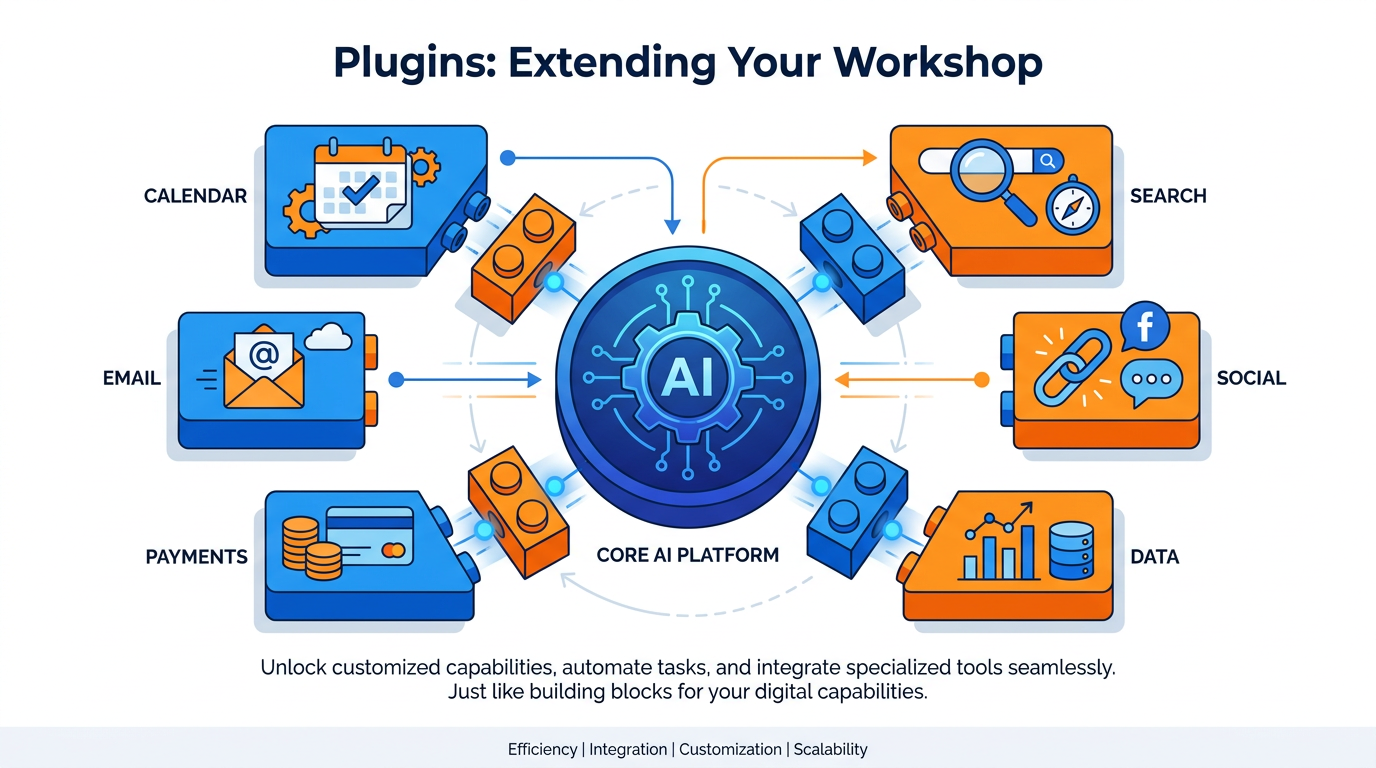
Figure 1:Plugins — The one-click layer. No configuration. No credentials file. No developer required. Just install and use.
There is a difference between a tool that is powerful and a tool that is connected.
A powerful tool does impressive things in isolation. A connected tool does useful things in the context of your actual life and work. The difference between the two is not capability — it is integration.
You have already built the capability layer. You have Claude Desktop configured with your system prompt. You have Gems set up for recurring tasks. You have MCP connections to Google Workspace, Firecrawl, and Supabase. Your AI has intelligence and access.
Plugins are the next layer — and they work differently from everything you have set up so far.
Where MCP connections require configuration, plugins install with a single click. Where MCP servers talk to your local machine, plugins are cloud-based integrations maintained by the tool providers themselves. Where building a custom MCP connection takes fifteen minutes and some patience, installing a plugin takes thirty seconds.
The tradeoff is control. MCP gives you maximum flexibility — you can connect anything, configure it exactly as you need, and own the entire setup. Plugins give you maximum convenience — pre-built, maintained, ready to use, with no configuration required.
Both have a place in your workshop. This chapter is about plugins — what they are, where to find them, how to install them, and how to build one when you need something that does not yet exist.
One more distinction worth making clearly: plugins are not the same as skills. A skill (Chapter 4) is a saved set of instructions that tells your AI how to behave for a specific task. A plugin is a live connection that tells your AI where to get information or what to do in the real world. A skill shapes the thinking. A plugin extends the reach. The most powerful workflows use both — a skill that defines the process, and a plugin that provides the live data that process runs on.
What Plugins Actually Are
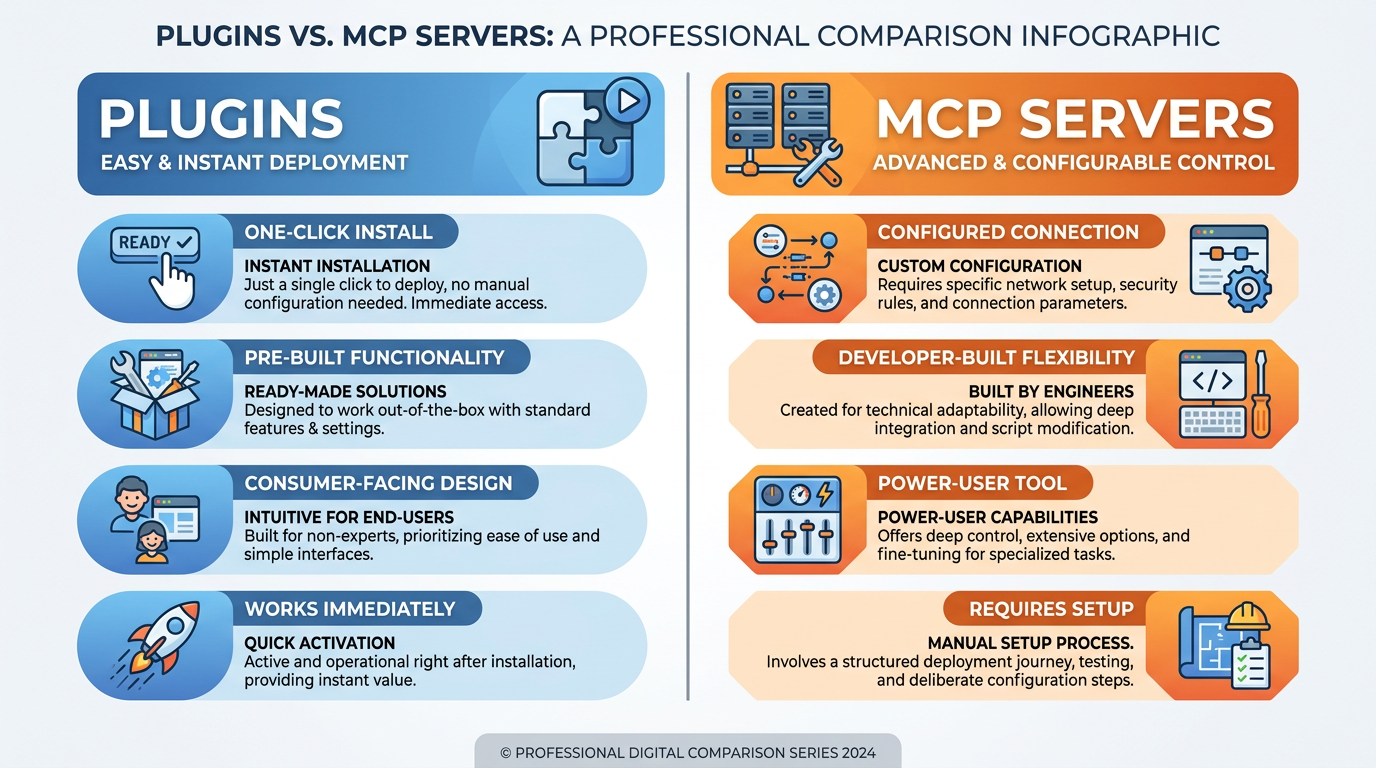
Figure 2:Plugins vs. MCP — Two ways to extend your AI. Plugins for convenience and speed. MCP for power and customization. Both belong in your workshop.
A plugin is a pre-built integration between an AI tool and an external service, distributed through a marketplace and installed with a single action.
Think of it like your phone’s app store. You do not build an Uber app from scratch every time you need a ride. You open the store, find the app, tap install, and it works. Plugins work the same way — except instead of adding an app to your phone, you are adding a capability to your AI.
When you install a Zapier plugin in Claude, for example, Claude can trigger automations across thousands of apps without you leaving the conversation. When you install a Google plugin, Claude can search Google, read results, and incorporate current information without you having to paste anything. When you install a Salesforce plugin, Claude can read and write to your CRM records during a conversation.
The plugin handles the connection. The authentication. The API calls. The data translation. From your perspective, you just say what you need, and the AI does it.
This is what makes plugins so immediately powerful for business users: they close the gap between “having access to information” and “having the information exactly when you need it, in the conversation where you are already thinking.”
Discovering the Plugins You Actually Need
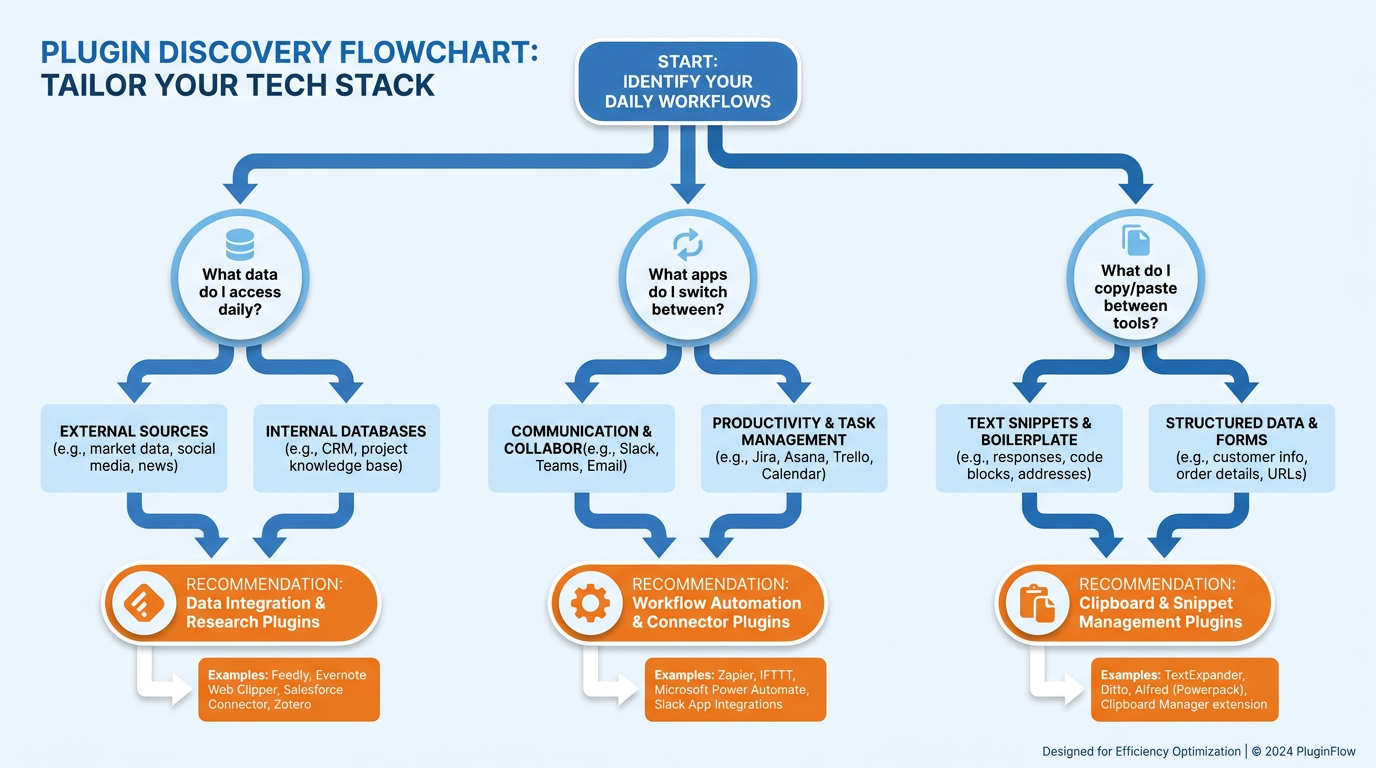
Figure 3:Finding Your Plugins — The best plugin for you is the one that eliminates your most frequent friction. Start there.
The plugin marketplace can feel overwhelming. There are hundreds of options across different AI platforms, and it is easy to install a dozen things and use none of them consistently.
The right approach is to start with friction.
Ask yourself: in a typical workday, what do I find myself doing outside of my AI conversation that I wish I could do inside it? Where do you switch tabs to look something up? What do you copy and paste from other tools? What information do you have to manually fetch and bring into a conversation?
Those friction points are your plugin roadmap.
For most business professionals, the highest-friction integrations fall into a small number of categories:
Real-time information — Your AI’s training has a cutoff date. When you need current information — today’s news, a live stock price, a recent announcement — your AI does not have it without a search plugin. A web search plugin eliminates this limitation entirely. You stop copying articles into the chat and start asking questions that get answered with current sources.
CRM and customer data — If you are in sales, client services, or business development, your CRM is where your professional world lives. A Salesforce, HubSpot, or similar plugin means your AI can pull client history, update records, and help you act on customer data without you leaving the conversation to look it up.
Project management — A Notion, Asana, or Linear plugin means your AI can see your actual tasks, your project status, your team’s work. You stop describing your project and start working on it directly.
Communications — Beyond the Google integration you set up in Chapter 3, specialized communication plugins for Slack, Teams, or your specific email environment can give your AI access to the real-time context of your working conversations.
Research and knowledge — Plugins that access specific knowledge bases — academic databases, legal research tools, industry databases — can give your AI specialized depth in areas where general training falls short.
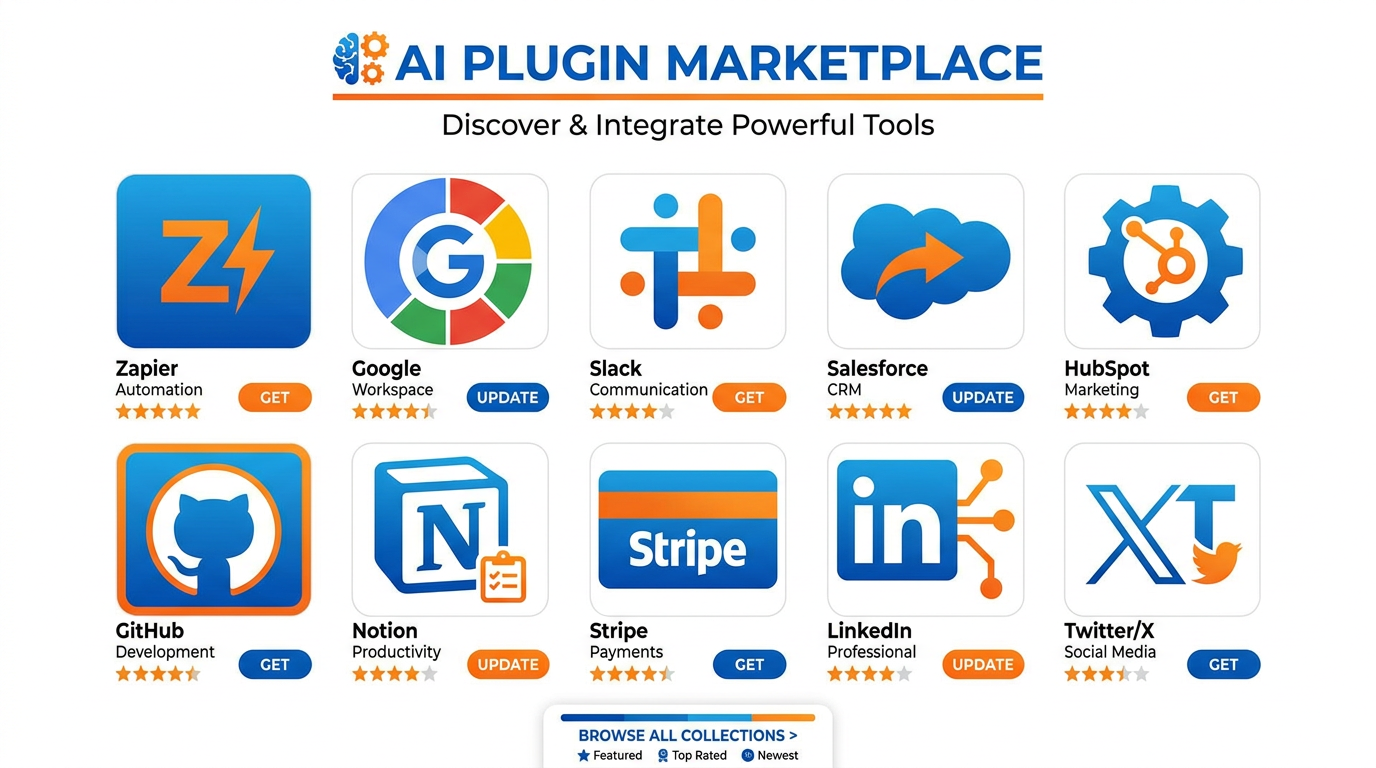
Figure 4:The Marketplace — Hundreds of integrations. Most of them interesting. A handful of them genuinely transformative for your specific work. Find yours.
The discipline is restraint. Install what you will actually use. A plugin you install and ignore is not a neutral addition — it adds to the cognitive overhead of your setup without adding value. Three plugins you use every day are worth more than twenty you forget are there.
Here is a practical prioritization method. Before you install anything, write down the specific task you are going to use this plugin for. Not “to be more productive” — the actual, specific task. “To pull client history before calls.” “To check live stock prices without leaving the conversation.” “To see my Asana tasks without switching tabs.” If you cannot write that sentence, do not install the plugin yet. Come back when you have a use case clear enough to articulate in one sentence.
Installing and Configuring a Plugin
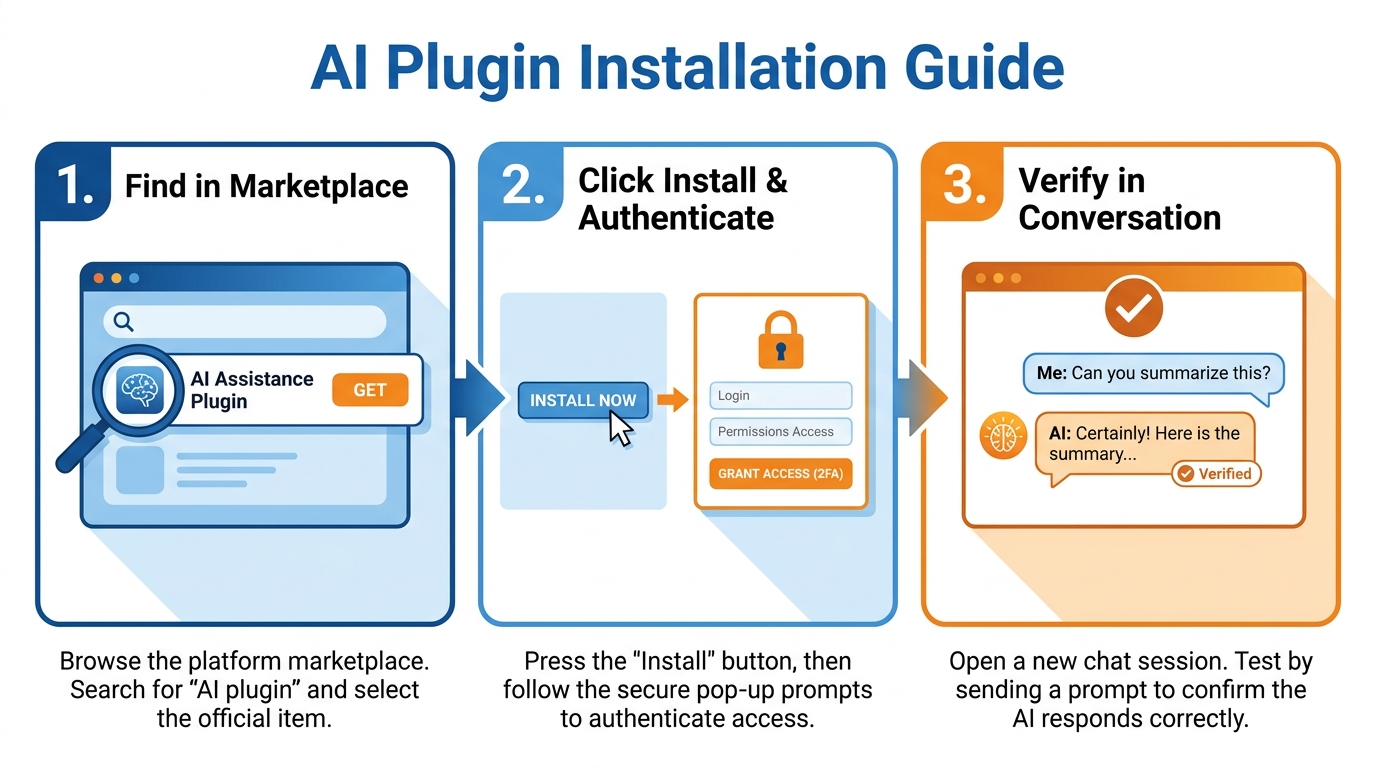
Figure 5:Installation — Three steps. Thirty seconds. Done.
Installing a plugin is genuinely simple — and the simplicity is the point.
In Claude Desktop: Go to Settings → Integrations (or the equivalent in your version). Browse or search for the plugin you want. Click Install or Connect. A browser window opens asking you to authenticate with the relevant service — sign in, grant the requested permissions, and you are done. The plugin is now available in any conversation.
In Gemini: Gemini’s extensions work similarly. In the Gemini interface, look for the Extensions menu. Find the tool you want to connect. Click Enable. Authenticate. Done.
Verification: After installing any plugin, test it immediately. Ask Claude or Gemini a question that requires the plugin to work — not a general question, but one that specifically requires the connected data. If the plugin is working, you will see it being invoked in the response. If something went wrong, you will know immediately and can troubleshoot while the installation is fresh.
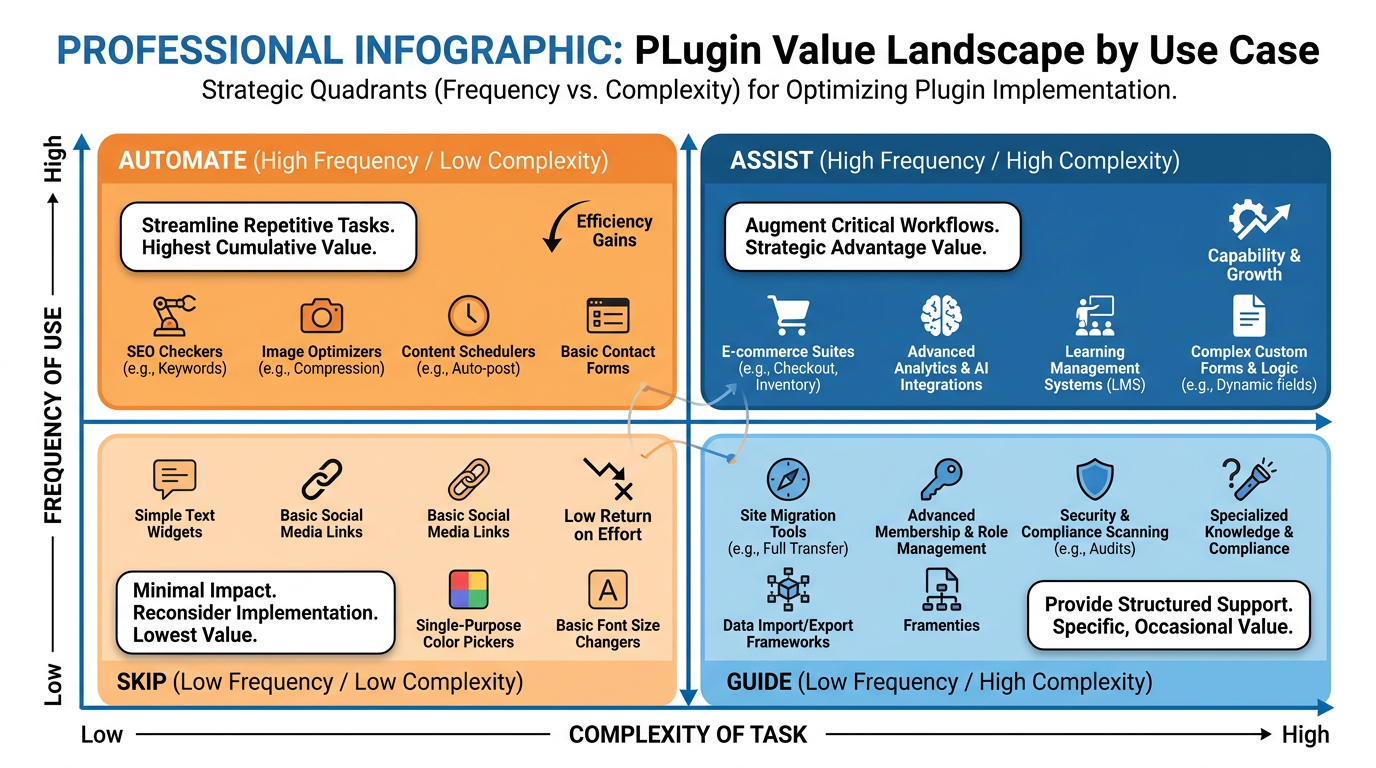
Figure 6:The Value Map — High frequency and high complexity is where plugins deliver the most. Start there and work outward.
One configuration consideration worth making: most plugins ask for more permissions than they strictly need. During authentication, you will see a list of what the plugin is requesting access to. Read it. If a note-taking plugin is asking for access to your contacts and calendar, that is worth questioning. Grant the permissions the plugin genuinely needs for the capabilities you want. Decline the ones that feel like overreach.
This is the same judgment you exercise with any app on your phone. It should be second nature.
A word on maintenance: plugins break. Tool providers update their APIs, change their authentication methods, or deprecate features. A plugin that worked perfectly last month may behave unexpectedly today. Build the habit of periodically testing your most important plugins — especially before you rely on them for something consequential. A two-minute test before a big client presentation is better than discovering mid-conversation that your CRM plugin stopped working.
When a plugin breaks, the fix is almost always straightforward: disconnect and reconnect, re-authenticate, or update to the latest version. The plugin providers maintain documentation for common issues. And if all else fails — ask Claude to help you troubleshoot. Paste the error message and ask what to do. It will almost always know.
The Plugin That Changes Everything
Every professional who builds a serious AI workflow eventually hits a moment where one specific plugin changes the nature of their work entirely. Not improves it — changes it.
For a consultant, it might be the moment a research plugin gives them real-time access to industry data that used to require a library subscription and two hours of digging. For a sales leader, it might be the moment a CRM plugin means every conversation with a client is informed by every interaction that has come before. For a marketer, it might be the moment a social listening plugin surfaces what their audience is actually talking about — live, in the conversation — instead of in a weekly report that is already three days stale.
You will know when you hit that moment. It does not feel like a productivity gain. It feels like the work became fundamentally different.
The path to that moment is the same for everyone: install the obvious plugins first, use them consistently, pay attention to where you still feel friction, and keep building toward the moment when the friction you care most about is gone.
The AI Comes to Your Documents: Claude for Excel and Claude for PowerPoint
Everything in this chapter so far has followed one direction: bring your tools into the AI conversation. There is a second direction, and for anyone who lives in Microsoft Office it may matter more: bring the AI into your tools.
Claude for Excel and Claude for PowerPoint are real Claude surfaces — official add-ins from Anthropic, distributed through Microsoft’s add-in marketplace, that put a full Claude conversation in a sidebar inside the Office application. Not a copy of the model, not a lookalike: your actual Claude account, your plan, your skills, signed in inside Excel. They are generally available on Claude Pro, Max, Team, and Enterprise plans, and they run in Office on the web, on Windows (Microsoft 365), and on Mac.
What makes the in-app version categorically different from copy-pasting into a chat window is that Claude can see and touch the artifact itself:
In Excel, Claude reads the open workbook — every tab — and answers questions with cell-level citations you can click to jump to the referenced cell. Ask it to walk you through how the number in C42 is calculated and it traces the formula chain. Ask it to change the discount rate to 8% and it updates values while keeping formula relationships intact, so downstream cells recompute instead of being flattened into pasted numbers. It can build a model from a plain-language description, populate an existing template, hunt down the source of a #REF! error, and perform native Excel operations — sorting, filtering, pivot tables, conditional formatting. It also warns you before overwriting existing data.
In PowerPoint, Claude reads your deck’s slide master — layouts, fonts, colors — and generates or edits slides inside your template rather than producing off-brand content you have to reformat. It makes pinpoint edits to a single slide without regenerating the deck, converts bullet lists into native, editable PowerPoint charts and diagrams, and builds full deck structures from a description.
And here is the piece that makes this a system rather than two separate conveniences: the add-ins share context with each other. Claude for Excel, PowerPoint, Word, and Outlook can participate in a single conversation that spans your open workbook, your presentation, your document, and your inbox. “Take the Q3 numbers from this workbook and update slides 4 through 7” stops being a twenty-minute copy-paste ritual and becomes a sentence.
When does in-app beat copy-paste? Use the rule of structure. If what you are working on is fundamentally text — a paragraph to improve, a section to summarize — copy-paste into chat loses nothing. But if the artifact has structure that matters — formulas that reference each other, slides that obey a template, formatting that took hours — copy-paste destroys the structure at the border, in both directions. Pasting a spreadsheet into chat gives Claude the values but not the formulas; pasting Claude’s answer back gives you text where a model used to be. The add-in works on the structure itself. That is the entire value proposition, and it is why finance teams were the first to adopt it.
Two cautions, stated plainly. First, Anthropic itself says Claude for Excel is not recommended for final client deliverables or audit-critical calculations without human verification — which is exactly the verification discipline from Chapter 1, now applied to formulas. Second, spreadsheets from outside your organization can carry prompt injection: hidden instructions in cells that try to manipulate the AI into leaking or modifying data (Chapter 14 treats this fully). Only point the add-in at workbooks you trust, and read its confirmation prompts before approving risky operations.

Figure 7:Claude in the Office Apps — The AI comes to the artifact. Formulas stay formulas, templates stay templates, and one conversation can span the workbook and the deck.
Try It: Have Claude Build a Model in Your Spreadsheet — Then Check Its Math
This activity takes about 40 minutes. You need: a Microsoft 365 account with Excel (Excel on the web at office.com works and is the most predictable path for students), and a paid Claude plan (Pro or above). If you have neither Excel nor a Microsoft account, a free Microsoft account at office.com gives you Excel on the web.
Install the add-in. Go to the Claude for Microsoft 365 listing on Microsoft AppSource — search “Claude by Anthropic” at appsource
.microsoft .com (or marketplace .microsoft .com) — and click Get it now. Sign in with your Microsoft account and follow the prompts. Alternative in-app route: open Excel, go to the Home tab and click the Add-ins button, then search “Claude” and click Add (in older desktop builds this lives under Insert → Get Add-ins — the label and location vary by version; on Mac desktop, check Tools → Add-ins). Fallback: if your school or employer’s Microsoft account blocks the Office Store, use a personal free Microsoft account at office.com instead — or ask your IT admin, since organizations often deploy the add-in centrally. Open the add-in and sign in to Claude. Open any workbook in Excel. On the Home ribbon, click Add-ins and select Claude (after first use, a Claude button may appear directly on the ribbon). A sidebar opens on the right with a Claude conversation in it. Click sign in and authenticate with your Claude account — the same one you use at claude.ai. When it works, you will see the familiar Claude message box sitting inside Excel, waiting.
Open a real workbook — or build the starter. Best case: open a real spreadsheet from your work or studies (use a copy, not the original — Anthropic’s own best practice). If you do not have one, create the starter in a fresh sheet: in cells A1:B6 type a simple business —
A1: Item,B1: Monthly, then rows:Revenue | 12000,Rent | 3000,Payroll | 5500,Software | 400,Marketing | 900. Five minutes, real enough to model.Ask Claude to build a small model — in the sheet. In the Claude sidebar, paste (edit the bracketed part to match your data):
“Using the data in [Sheet1 A1:B6], build a 12-month projection on a new tab called ‘Projection’: one column per month, revenue growing 3% per month, all costs flat except Marketing growing 5% per month, a Total Costs row, a Net Profit row, and a final row showing cumulative profit. Use formulas that reference the input cells — do not hard-code any numbers.”
Watch what happens: Claude proposes changes and writes into the workbook itself. A new tab appears. If Claude asks you to confirm an operation before it runs — approve it, and notice that the confirmation names exactly what it is about to touch. When it finishes, you will see a populated Projection tab with live formulas, not pasted values.
Interrogate the model. Click any cell in the Net Profit row, and ask in the sidebar: “Walk me through how this cell is calculated.” Claude answers with cell-level citations — click one and Excel jumps to that cell. This is the feature that no copy-paste workflow can imitate.
Verify one formula by hand. This step is the point of the whole activity. Pick one cell in Month 3 of the Projection — say, that month’s revenue. Click it and read the actual formula in Excel’s formula bar. Then check it yourself: on paper or a calculator, compute what Month 3 revenue should be (starting value × 1.03 × 1.03 — or × 1.03³ depending on how the model anchors month 1) and compare it to the cell’s displayed value. Then trace the formula: does it reference the previous month’s cell (growing chain) or the original input (compounded from anchor)? Both can be correct — but you should know which one Claude chose, because that choice changes what happens when someone edits Month 2. If the number does not match your hand calculation, you have found either your arithmetic error or Claude’s — and finding out which is the best ten minutes of AI education available this week.
Flex an assumption and watch the structure hold. In the sidebar: “Change revenue growth to 5% per month and tell me the impact on cumulative profit.” Watch the sheet recompute. Because Claude wrote formulas rather than numbers, the whole model updates coherently.
Submit: The workbook file (or a screenshot of the Projection tab showing the formula bar), plus: (1) the one formula you verified, written out, (2) your hand calculation and whether it matched, and (3) one sentence on whether Claude anchored growth to the previous month or the original input — and why that difference matters.
If you want the PowerPoint side too: the same add-in installation covers PowerPoint. Open a deck, launch Claude from Home → Add-ins, and ask it to turn your Projection tab’s story into three slides. Watch it use your deck’s existing layout and fonts instead of inventing its own.
Claude Tag for Slack: The AI in the Channel
There is one more place your AI can meet you, and it is where an enormous amount of real work actually happens: the team chat.
Claude Tag is Anthropic’s Slack-native Claude — as of August 2026, it is the Claude experience in Slack, replacing the earlier Claude app. The interaction model is exactly what the name says: you tag Claude in a thread, the way you would tag a colleague. Claude reads the conversation that is already there — the decisions, the open questions, the file someone dropped forty messages ago — and does the work in the thread, where everyone can see it. Ask it to summarize what was decided. Ask it to draft the customer email the thread has been circling for an hour. Ask it to turn a chaotic bug report into action items. It posts its answer as a reply, the team reads it together, and anyone can build on it.
That last clause is the strategically interesting part. Every AI surface in this book so far has been personal — your chat, your project, your sidebar. Claude Tag is shared cognition: the answer lands in the channel, not in one person’s private window. It fits into this chapter’s story as the plugin pattern inverted — instead of a plugin bringing Slack’s data into your Claude conversation, Claude itself is installed into the channel as something closer to a teammate. (Chapter 13 develops the channel idea further; this is your first encounter with it.)
On Claude Team and Enterprise plans, Tag goes well beyond summarize-and-draft: standing instructions (“watch this channel and flag anything urgent”), scheduled routines like weekly digests, memory that persists across threads and days, and connections to external tools under its own audited identity. You do not need any of that for the core experience — but you should know the ceiling is much higher than the floor.
One governance note, because your instructor will ask: whatever Claude Tag reads in a channel is conversation data flowing to an AI vendor under your organization’s agreement. That is precisely why rollouts are admin-controlled — and why the permission-reading habit you built earlier in this chapter applies to workspace apps too.

Figure 8:Claude Tag — Tag it in like a colleague. It reads the thread, does the work, and posts back where the whole team can see it.
Try It: Tag Claude Into a Real Thread
This activity takes about 25 minutes. You need a Slack workspace where you can install apps. If you do not have admin rights at work — and most students do not — do not fight IT: create your own free workspace. That is the standard fallback path, and it takes three minutes.
Secure a workspace you control. Fallback-first: go to slack
.com /get -started, choose Create a Workspace, sign up with any email, and name it anything (“ai-lab” works). Free plan is fine. If you do have a workspace where you are allowed to install apps, you may use it instead — but everything below assumes you have installation rights. Install the Claude app. In a browser, go to the Slack Marketplace and search for Claude (the listing is “Claude” by Anthropic — slack
.com /marketplace, search “Claude”). Click Add to Slack, then Allow to grant the app its permissions — read them as you go, as you practiced earlier in this chapter. When prompted, return to your workspace. You will see Claude appear in your Slack sidebar (look under Agents & tools or Apps; if you do not see it, click More in the sidebar). Connect your Claude account. In Slack’s sidebar, click Agents & tools (or Apps), find and open Claude, go to its Home tab, and click Connect Account. A browser window opens; sign in with your Claude account and return to Slack. When it works, the Home tab shows you as connected. Fallback: if the connection step reports that your Claude plan does not support a feature, continue anyway — summarize-and-draft works from a DM-and-mention flow on standard accounts; the advanced agentic features are the Team/Enterprise layer.
Create a channel and add Claude to it. Create a channel called
#project-demo(click + next to Channels → Create channel). Then click the channel name at the top, open the Agents & apps tab (older UIs label it Integrations), click Add Agent or App, and add Claude. You will see a system line in the channel confirming Claude joined.Build a thread with real substance — at least 10 messages. In
#project-demo, post an opening message describing a real decision you are wrestling with (an event to plan, a purchase to make, a project deadline at risk). Then reply in the thread at least ten times, playing the different voices a real thread has: someone proposes option A, someone raises a cost concern, someone mentions a deadline, someone asks an unanswered question, someone goes off-topic about lunch. Scatter two or three concrete facts (a date, a dollar figure, a name) across the messages. If you can recruit a classmate into your workspace, even better — but solo works.Tag Claude and ask for the summary. As a new reply in that same thread, type:
Claude Summarize this thread: what has been decided, what is still open, and what are the concrete facts (dates, numbers, names) mentioned so far?
Send it. Within moments, Claude replies in the thread. Check its work: did it catch the dollar figure from message four? Did it correctly separate decided from undecided? Did it ignore the lunch tangent? You planted the facts — you are the answer key.
Ask for the draft. Reply again in the thread:
Claude Based on this discussion, draft a short message I could send to [the stakeholder in your scenario] with our current recommendation and the one question we still need answered.
Read the draft it posts. Notice what it pulled from thread context that you never put in the prompt — that context-reading is the entire product.
Find its limit. Ask one more question whose answer is not in the thread (a fact you deliberately never mentioned). A good response admits the thread does not contain it or asks for it. A bad one invents it — Chapter 1’s hallucination discipline, now in a channel where the whole team would have seen the confident fabrication. Note which you got.
Submit: Screenshots (or copied text) of your thread’s Claude summary and Claude’s drafted reply, plus two sentences: (1) one thing Claude correctly extracted from thread context that you did not restate in your prompt, and (2) what it did when you asked for the fact that was not there.
Building Your First Plugin
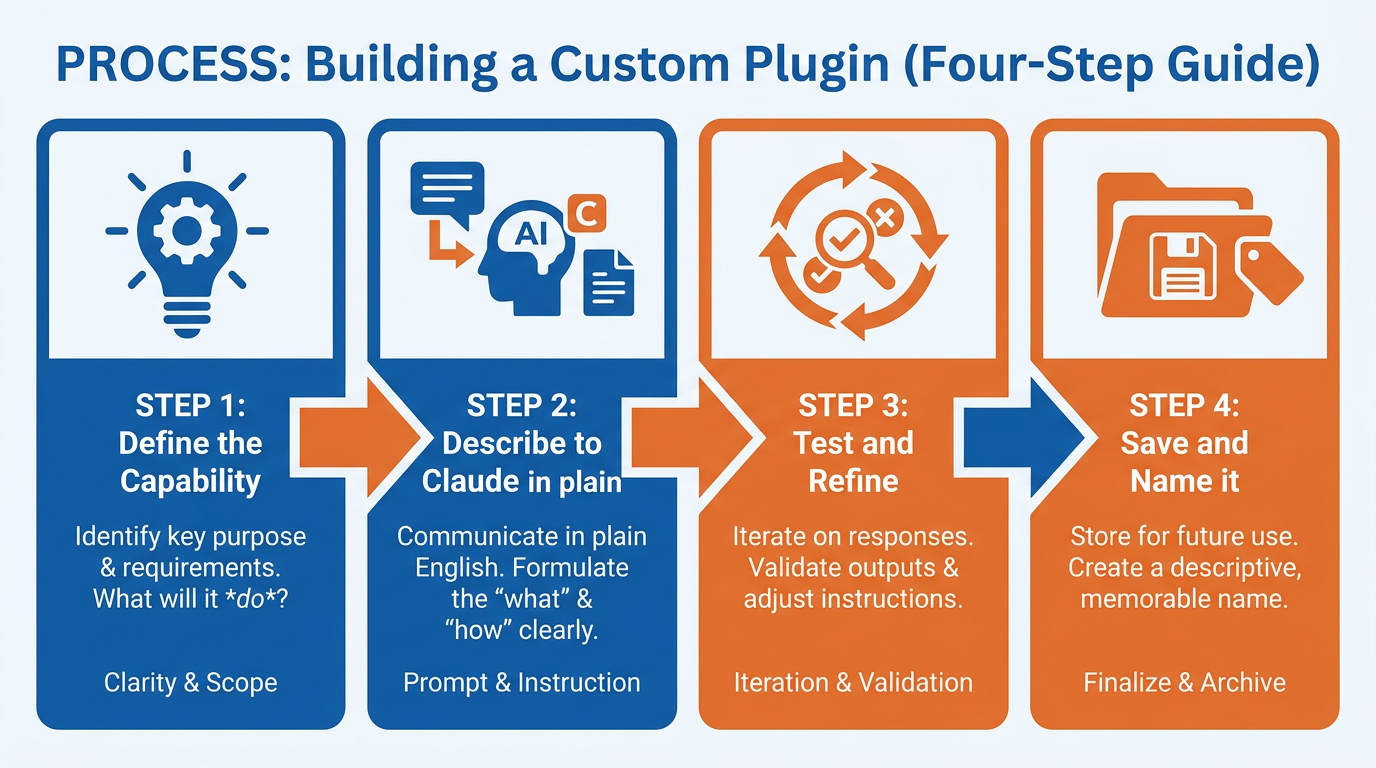
Figure 9:Building a Plugin — When what you need does not exist in the marketplace, you build it. With Claude helping you write it, the barrier is lower than you think.
Here is a moment that shifts how you see the relationship between yourself and your tools.
The marketplace contains what someone else decided to build. Your specific work — the particular combination of tools, data, and workflows that is unique to your role and your industry — may not be covered. When it is not, you can build it yourself.
This sounds more intimidating than it is.
A plugin, at its core, is a set of instructions that tells your AI how to interact with a specific tool or data source. You define what the plugin does, what it takes as input, and what it produces as output. Claude can help you write every part of this.
Step 1: Define the capability. What does this plugin do? What tool or data source does it connect to? What would you type to use it — and what would you expect to get back? Write these three things down in plain English before you touch anything technical.
Step 2: Let Claude write it. Open Claude Desktop and say:
“I want to build a custom plugin for [tool name] that [describe the capability]. When I use it, I will provide [describe the input]. It should return [describe the output format]. Here is the relevant documentation from the tool’s website: [paste the relevant section]. Write me the plugin specification.”
Claude will produce a specification. Review it. Ask it to adjust anything that does not match what you need.
Step 3: Test with real inputs. Before declaring the plugin finished, run it against at least three real examples from your actual work. Not hypothetical examples — real ones. The first will reveal gaps. The second will confirm fixes. The third will show you whether the output is consistently useful.
Step 4: Save, name, and document. Name the plugin clearly. Write one sentence describing what it does and when to use it. Store this somewhere you will find it. In six months, when you have a library of custom plugins, you will want clear documentation of what each one does — especially the ones you built yourself for specific purposes.
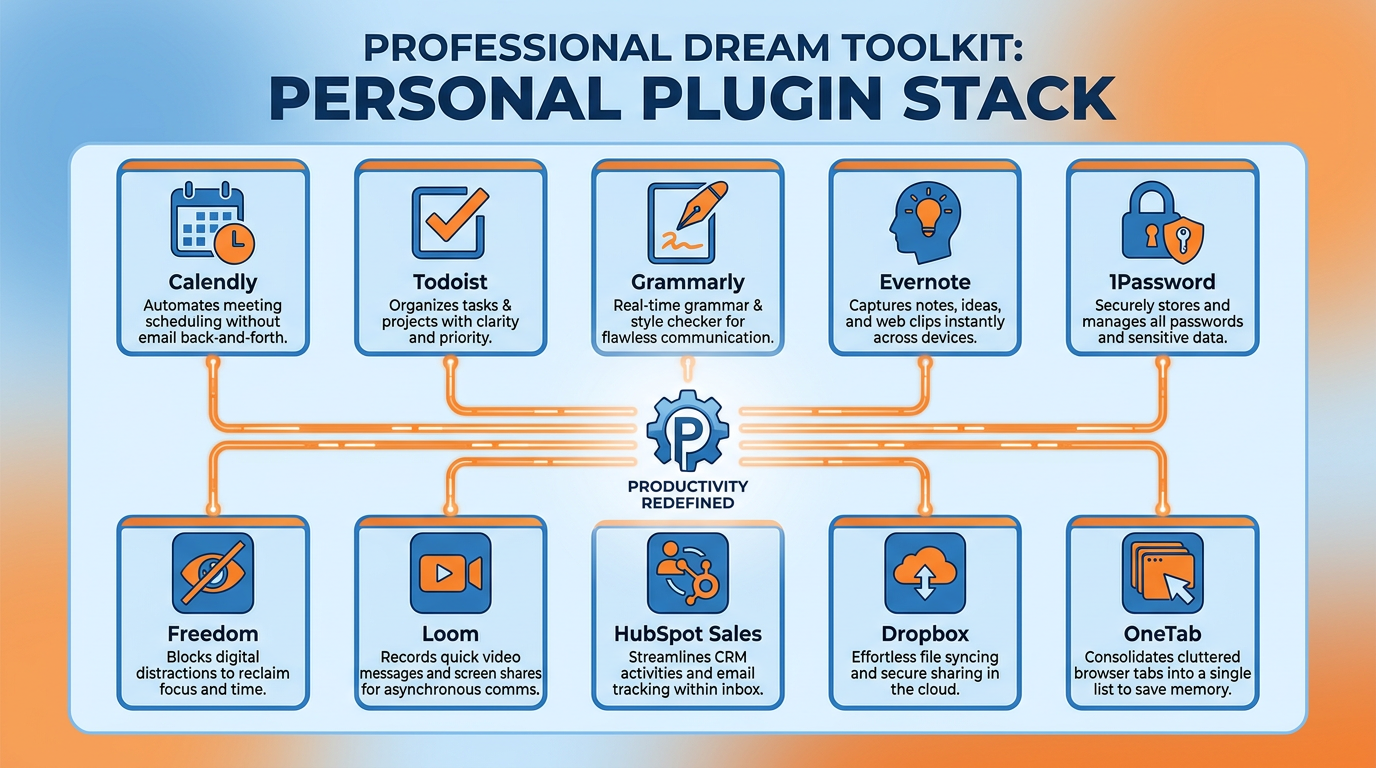
Figure 10:Your Plugin Stack — The ideal starter set. Not all of these will apply to your specific work — but this is what a complete, well-considered plugin library looks like.
Case Study: The Integration Crossroads at Meridian Capital Group
Background
Meridian Capital Group is a mid-sized private equity and asset management firm headquartered in Atlanta, Georgia, with approximately 340 employees and $4.2 billion in assets under management. The firm operates across three divisions — deal origination, portfolio management, and investor relations — each with distinct information workflows and tool ecosystems. In early 2025, Meridian’s Chief Operating Officer, Diana Forsythe, launched what she called the “Intelligent Workflow Initiative,” a structured effort to embed AI into the firm’s daily operations.
The initiative was not born from enthusiasm about technology. It was born from a specific bottleneck. Meridian’s deal analysts were spending an estimated 90 minutes per day manually moving information between systems — pulling market data from Bloomberg terminals, copying deal pipeline updates from Salesforce, summarizing board memos from SharePoint, and pasting all of it into a shared document before weekly deal committee meetings. The process was tedious, error-prone, and deeply resistant to the firm’s growing deal velocity. Forsythe hired a small internal AI task force — three analysts and an IT architect named Rafael Mendez — to evaluate options.
Mendez’s team began by cataloging the firm’s existing tool stack: Salesforce for CRM, Bloomberg for market data, SharePoint for document management, Slack for internal communication, and a proprietary portfolio analytics platform built in-house seven years earlier. The question was not whether to extend their AI capabilities. Claude Desktop had already been provisioned firm-wide for six months, and basic Gemini access was available through the firm’s Google Workspace contract. The question was how — through plugin installation, MCP server configuration, or custom-built skill definitions — and with what level of control.
What complicated the decision was Meridian’s regulatory environment. As a registered investment adviser, the firm operated under SEC oversight, with strict obligations around data governance, access controls, and audit trails. Any AI integration that touched client data, portfolio positions, or deal flow records had to satisfy the firm’s compliance team, led by Chief Compliance Officer Sylvia Park. Park had a single, non-negotiable requirement: any AI integration with client-facing or deal-sensitive data must produce a log of every query and every response, accessible to her team on demand. Convenience was not her concern. Accountability was.
The Situation
Mendez’s team identified three viable paths. The first was to install available marketplace plugins — Salesforce, Google Workspace, and Slack connectors were all available in the Claude plugin ecosystem — and accept the convenience they offered at the cost of reduced visibility into what permissions those plugins held and how queries were logged. The second path was to build MCP server connections directly to each tool, which would give the firm full configuration control, detailed logging capabilities, and the ability to scope permissions precisely — but required two to three weeks of setup per integration and ongoing maintenance. The third path was hybrid: install plugins for low-sensitivity workflows (web search, general research), build MCP connections for anything touching deal or client data, and use skills to codify the analytical processes the deal team ran repeatedly, so that AI behavior was consistent and auditable regardless of which data source it drew from.
The tension Forsythe and Mendez faced was not simply technical. It was organizational. The deal analysts wanted speed — they had been promised a tool that would reduce their 90-minute daily overhead, and they were watching that promise recede with every week of planning. The compliance team wanted control. The IT team wanted a solution they could maintain. And Forsythe wanted a decision that the firm could grow into rather than one it would have to undo in eighteen months. The three paths each optimized for a different stakeholder’s priorities, and no path satisfied all of them simultaneously. Choosing among them required a framework — not just for this decision, but for how Meridian would make AI integration decisions going forward, as the marketplace matured and new options continued to emerge.
Discussion Prompt
Using the architectural distinctions developed in this chapter — plugins, MCP servers, and skills as fundamentally different layers of AI extension — evaluate Meridian’s three integration paths against the competing organizational constraints the firm faces. Which approach best balances the control-versus-convenience tradeoff given Meridian’s regulatory obligations, and how does the concept of permission management as governance (rather than as a technical configuration step) change the strategic calculus? What signals in this case suggest where Meridian sits on the organizational maturity curve for AI adoption, and how should those signals influence the sequencing of their integration decisions?
Discussion Guidelines
Initial Post (due before class)
Minimum 400 words
Directly address the discussion prompt using concepts from this chapter
Include at least one APA-formatted citation — from the course text or a peer-reviewed source
Avoid summary; demonstrate analysis and original thinking
Peer Responses (minimum 2)
Minimum 250 words each
Each response must include at least one APA-formatted citation
Engage substantively — build on, challenge, or offer a contrasting perspective grounded in evidence
“I agree” or “Great post” responses do not meet the requirement
Maintain a professional and respectful academic tone
Applied Exercise: Install Three Plugins This Week
This exercise ends with three plugins installed, tested, and integrated into your daily workflow — one for real-time information, one for a tool you use constantly, and one you build yourself.
Track A — Claude Desktop
Plugin One: Web Search
Find and install a web search plugin for Claude Desktop or Gemini (search “Claude web search plugin” or “Gemini search extension” for the current options — these evolve quickly). Once installed, test it with a question that requires current information:
“What are the three most significant AI announcements from the last seven days that are relevant to [your industry]?”
Notice what changes: your AI is no longer limited to what it knew at training time. Current information is now part of every conversation where you need it.
Then push further. Ask it to research a competitor who released a press release this week. Ask it to find the latest pricing information for a tool you are evaluating. Ask it to surface news about a client’s industry that you could reference in tomorrow’s conversation. Every question that used to require a tab switch now has an answer inside the conversation. The experience of not having to leave — of your AI being genuinely current — is more significant than it sounds until you have felt it.
Plugin Two: Your Most-Used Business Tool
Identify the one external tool you reference most often during your work — your CRM, your project management tool, your calendar, your note-taking system. Find its plugin or integration with Claude and install it.
Test it with a question that requires real data from that tool:
“What are the three most important things I need to do today based on my [tool name] data?”
The first time you ask your AI a question and it answers using your actual live data — not data you described, not data you pasted, but the live system — is a moment worth paying attention to. That is the tool becoming genuinely useful.
Plugin Three: Build One
Identify a small, specific capability you wish your AI had but that does not exist in any marketplace. Something narrow. Something useful. Something you would use at least twice a week.
Use the four-step process from this chapter to build it. Have Claude help you write the specification. Test it on real work. Refine once. Save it.
After completing all three, write two sentences:
What is the most impactful thing these plugins changed about how you work? And what is the next plugin — built or installed — that would create similar impact?
The bigger picture:
Your plugin library is a living system. It grows with your work, your tools, and your ambitions. Every time you find yourself switching tabs, copying and pasting between systems, or manually fetching information that your AI should already have — that friction is a plugin waiting to be installed or built.
Most professionals tolerate that friction. They adapt to the inconvenience. They build workarounds. They accept that “using AI” means working in two worlds at once — the conversation and the tab-switching outside it.
The professionals who build serious AI workflows refuse that trade. They see every friction point as a solvable problem. They install the plugin. They build the connection. They eliminate the gap.
Over a year of this practice, the accumulated effect is dramatic. Not a 10% improvement in how fast you work — a fundamental change in how your work feels. Information appears when you need it. Tools respond to natural language. Workflows run without you manually connecting the dots.
That is the promise of the connected workshop. And plugins are the layer that makes it real.
Stop tolerating friction. Build the plugin.
Track A Your Submission: Run the plugin on a real professional task you actually need done today — not a test. Copy the full output into a document. Write two sentences: (1) what you asked and why the plugin was necessary (what would have been missing without the live connection), and (2) what you plan to use this plugin for every week going forward. Submit the output + two sentences.
Track B — Claude Code inside Antigravity IDE
Open Antigravity 2.0 IDE → Editor surface → integrated terminal → Claude Code (claude> prompt ready).
At the claude> prompt, type “/mcp” and press Enter. Review the list of available integrations.
Install a web search integration first — it is the most universally useful. Find it in the /mcp list and follow the exact command syntax Claude Code displays. Authenticate in the browser window that opens. Confirm it shows as active in the /mcp list.
Run a real professional query using web search: “What are the three most significant competitive developments in [your specific industry] in the last 30 days? For each one, give me: (a) what happened, (b) why it matters for someone in [your role], and (c) one specific action I should consider in response. Cite your sources with dates.” Read the output and verify Claude Code is citing real, recent, specific sources.
In the Antigravity IDE file browser, right-click and create a new file called “industry-intel.md.” Ask Claude Code to save the web search output to that file. Watch it appear and populate in the file browser.
Now install a second integration — one that connects to a tool you use daily. Use /mcp to find options: a file reader for your documents folder, a calendar connector, GitHub, or a project management tool. Follow the same process: find it, authenticate, confirm active.
Run a real query using the second integration. If you connected a file reader: “List and summarize the five documents I have modified most recently in [your folder path]. For each one, tell me its topic and whether there is anything I should act on.” If you connected a calendar: “What external meetings do I have this week? For each one, tell me the attendees, the meeting purpose, and one thing I should prepare.”
Save this second output as a new file in the IDE file browser.
Now design and run a combined workflow using both integrations: “Using web search and [second integration], [describe a task that requires both — for example: ‘check my calendar for client meetings this week, search the web for recent news about each client’s company, and produce a one-page briefing for each meeting with the news context included’].”
Watch the Antigravity IDE file browser as Claude Code works through the combined task. Files appear and update in real time. The final combined output saves as a file you can open and share directly from the IDE.
Your Submission: Compile into one document: (1) your web search output with sources cited, (2) your second-integration output, (3) your combined-workflow output. Write two sentences: (1) which integration produced the most immediately useful result and why, and (2) describe one specific workflow you want to build this week that combines two of your installed integrations and name the professional problem it solves. Submit three outputs + two sentences.
Track C — Gemini + Antigravity 2.0 IDE
Open Gemini (gemini.google.com) and sign in. Find the Extensions menu (look for a settings icon, plug icon, or “Extensions” in the sidebar or settings).
Enable the Google Workspace extension. This connects Gemini to your actual Gmail, Google Drive, Google Calendar, and Google Docs. Approve any permission prompts — you are granting Gemini read access to your own Google account.
Test the Gmail connection with a real question: “Find the three most important emails in my inbox from the last 48 hours that require a follow-up from me. For each one: who sent it, what do they need from me, and draft a one-sentence response I could send.” Read the response and note when Gemini cites a real subject line or sender name from your actual inbox.
Test the Drive connection: “Find any documents in my Google Drive related to [a project you are currently working on]. For each document, tell me its title, what it contains, and whether there is anything I should review before my next relevant meeting.” Verify Gemini is reading real document titles and content.
Test the Calendar connection: “What external meetings do I have this week? For each one, who are the attendees and what should I prepare?” Confirm Gemini is reading your real calendar entries.
Now open a second browser tab and try the same Gmail and Calendar questions in a plain Gemini chat with no extensions enabled. Compare the responses — without extensions, Gemini has none of your data and produces generic advice. With extensions, it cites your real emails and events.
Open Antigravity 2.0 IDE and press CMD+E (Mac) / CTRL+E (Windows) to switch to Agent Manager. Create a new Project or open an existing one.
In the Project, add a web search tool extension — this is Antigravity’s own tool layer, separate from Gemini’s Google extensions. Click the tools/extensions option in the Project settings and connect web search.
Start a new Agent task: “Search the web for the five most significant recent developments in [your industry]. For each development: what happened, why it matters, and one specific action a business professional in [your role] should consider taking. Produce this as a one-page intelligence briefing.” Submit the task.
While the Antigravity agent runs in the background, return to Gemini and ask a follow-up question that uses the Google Workspace data you already retrieved — connecting the insights from your personal data with the broader industry picture.
Your Submission: Compile three outputs into one document: (1) the Gemini Gmail/Drive analysis showing your personal data, (2) the Gemini vs. no-extensions comparison from Step 6, (3) the Antigravity web intelligence Artifact. Write two sentences: (1) what surprised you most about what Gemini found in your own Gmail or Drive, and (2) describe a combined workflow that uses both your Google personal data (Gemini) and the public web (Antigravity) and the specific professional problem it would solve. Submit three outputs + two sentences.
Reflection
After completing the plugin work in any track, write two sentences:
What is the most impactful thing these plugins changed about how you work? And what is the next plugin — built or installed — that would create similar impact?
If you ran more than one track: Did the same friction point feel solvable in every surface, or did one surface make a particular integration obvious and another make it awkward? Your answer is a map of where to invest your integration time next quarter.