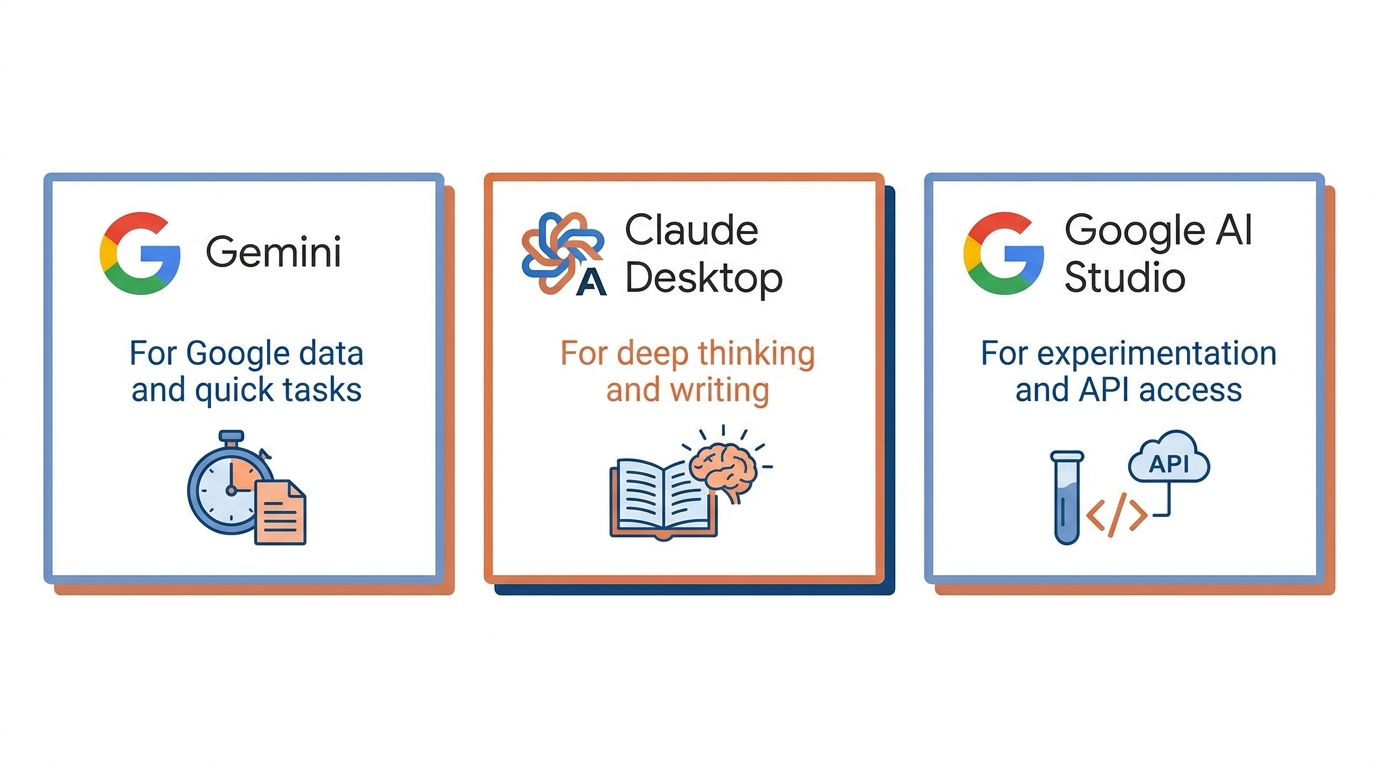
Figure 1:Your Cognitive Workshop — Three independent tools. Three separate jobs. No connection between them.
Think about the last time you sat down to do something important and realized your tools were not ready.
The file was in the wrong place. The software needed an update. You had to hunt for a password. By the time you had everything set up, you had lost the momentum — and maybe the will to start.
That is what happens to most people with AI. They have the access. They have the ability. But every time they sit down to actually use it, there is friction. They open a browser tab they haven’t used in three weeks. They have to remember which tool does what. They start from scratch, again, with no context saved, no preferences loaded, no memory of the last conversation.
This chapter eliminates that friction permanently.
By the end of it, you will have three tools installed, configured, and calibrated to you — your role, your preferences, your work. Every time you open them, they are ready. They know who you are. They know how you think. They do not need to be reintroduced.
One important thing before we go further: these three tools are completely independent of each other. They do not share data. They do not talk to each other. They are three separate products from three different companies — and you choose between them based on what you are trying to do, not use them as a connected system. Do not let the fact that they appear in the same chapter confuse you on this point.
Tool One: Claude Desktop
Claude Desktop is made by Anthropic. It is a standalone application — not a browser — and it is the tool most professionals in this book will use the most. Claude is exceptionally good at following nuanced instructions, writing with a consistent voice, reasoning through hard problems, and maintaining context across a long conversation.
It does one thing: it talks to Anthropic’s Claude model. That is it. It does not connect to your Google account. It does not read your email. It does not know what Gemini is doing. It is a standalone thinking partner.
The reason to prefer the desktop application over the browser version is persistence. The desktop app lets you set a system prompt — a standing set of instructions — that loads before every conversation automatically. You write your instructions once, and they are always there. The browser version does not preserve this across sessions.
Installing Claude Desktop:
Go to claude.ai/download and download the version for your operating system. Install it like any other application. Sign in or create an Anthropic account.
A free account gets you started. If you plan to use Claude seriously — and after this chapter you will — upgrade to Claude Pro ($20/month). The difference in output quality between the free and paid models is meaningful enough that working from the free tier will frustrate you within a week.
Once installed, leave the system prompt blank for now. You will fill it in during the Applied Exercise using a technique called meta-prompting — where Claude writes its own instructions based on an interview with you.
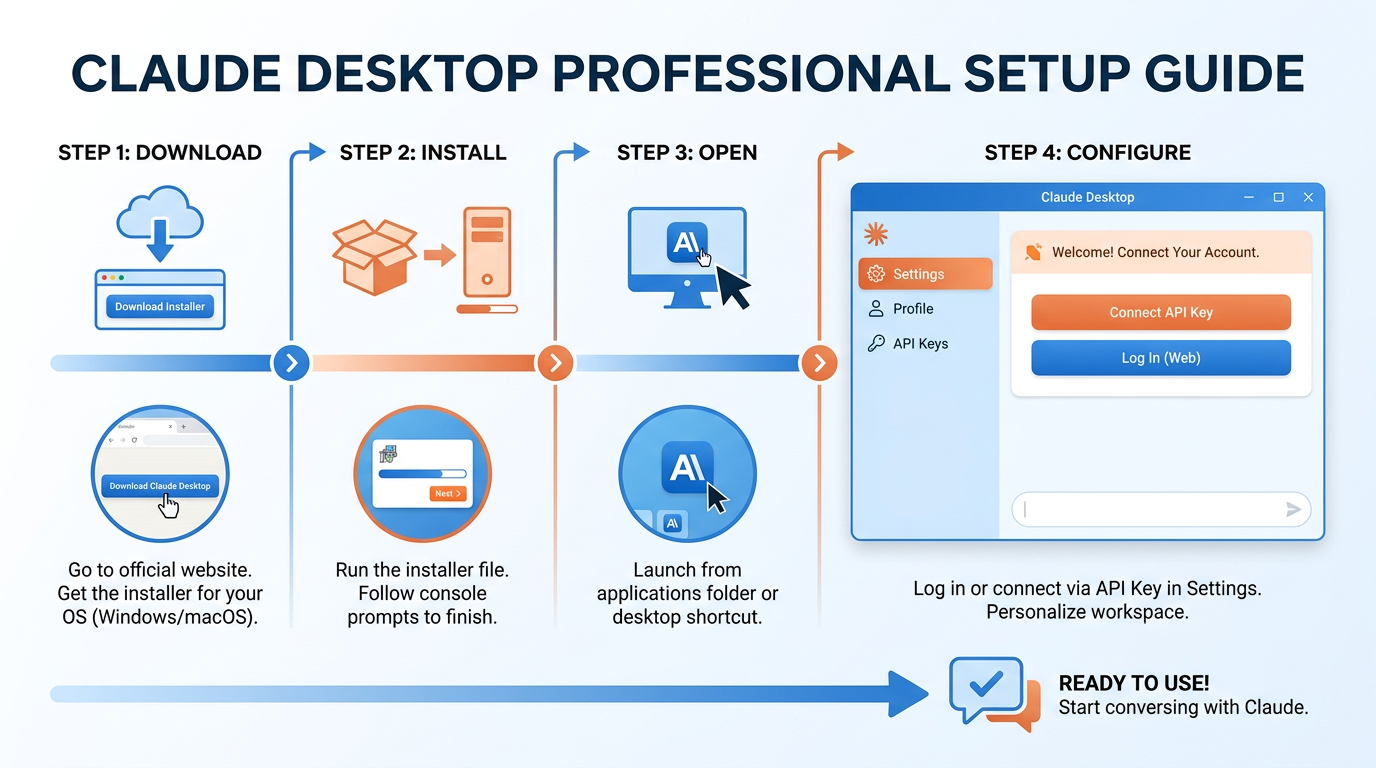
Figure 2:Claude Desktop Setup — A standalone application with persistent instructions. Nothing else connects to it.
What Claude Desktop is for:
Use Claude when you need to think carefully about something. Writing that needs to sound like you. Analysis that requires following a chain of reasoning. Documents you need drafted, edited, or restructured. Strategy problems where you want a tool that pushes back and asks clarifying questions rather than just agreeing with everything you say.
Claude is not fast and cheap. It is thoughtful and precise. Reach for it when quality matters more than speed.
Tool Two: Gemini
Gemini is made by Google. It lives at gemini.google.com and you sign in with your Google account. It is a completely separate product from Claude. It does not know Claude exists. It is not connected to AI Studio. It is Google’s consumer AI product and it runs on Google’s Gemini model family.
The reason to use Gemini is not that it is better or worse than Claude — it is that it is native to Google’s ecosystem. Because you are already signed in with your Google account, Gemini has awareness of your Gmail, Drive, Docs, and Calendar when you explicitly ask it to use them. If you want to summarize your recent emails, search your Drive, or check what is on your calendar next week, Gemini can do that. Claude cannot.
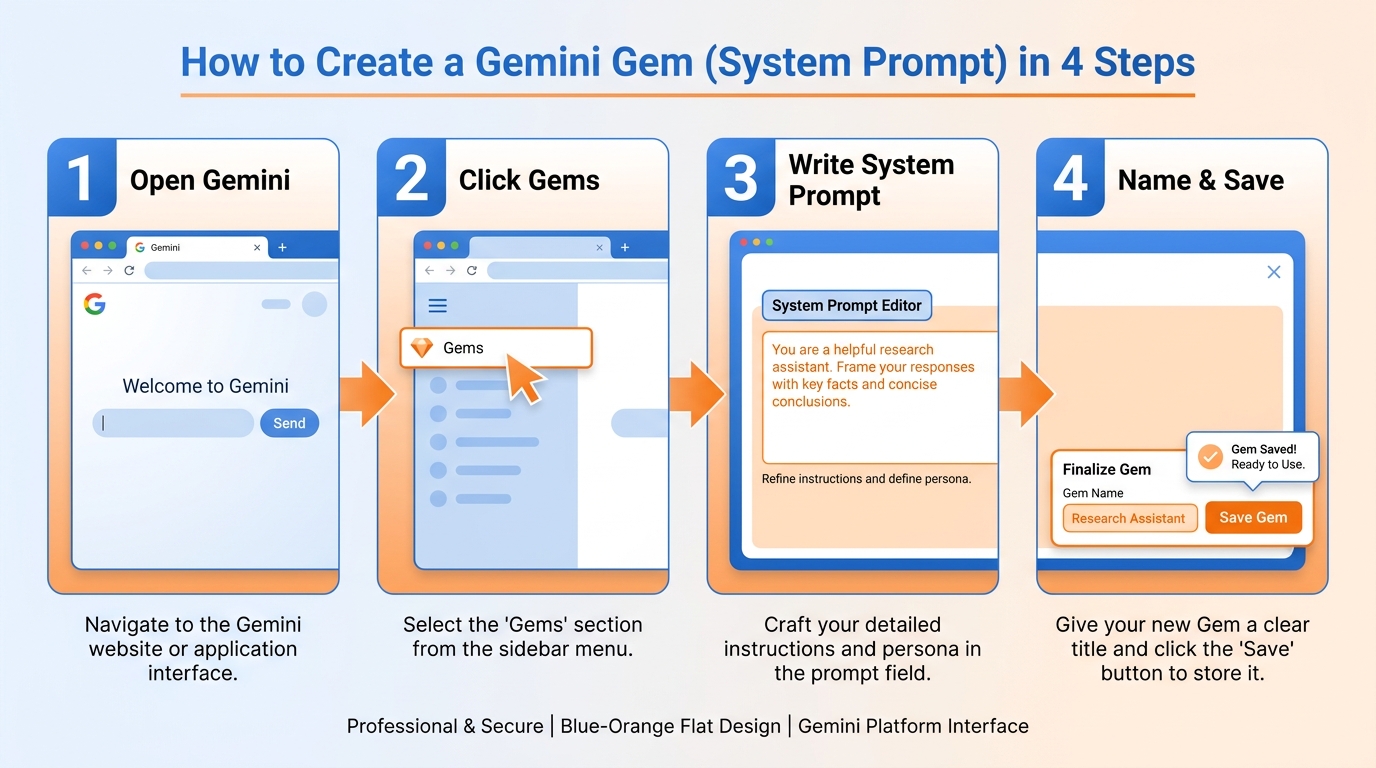
Figure 3:Creating a Gem — A saved configuration inside Gemini. It has nothing to do with Claude or AI Studio.
Setting up Gemini:
Go to gemini.google.com and sign in. That is the entire setup. There is nothing to install.
The feature worth configuring immediately is Gems. A Gem is a saved AI configuration that lives inside Gemini. You give it instructions — a system prompt — and every time you open that Gem, it loads those instructions automatically. It remembers how it is supposed to behave. You do not explain yourself from scratch every session.
To create a Gem: click Gem Manager in the left sidebar → New Gem → write instructions → name it → save. The Gem is now permanently available in your sidebar.
What Gemini is for:
Use Gemini when your task touches Google data. When you want to search something in your Drive, reference your Gmail, or cross-reference your Calendar. Also use it when you want a fast, capable response without opening a separate application — Gemini in the browser is frictionless for quick questions.
All three tools in this chapter also ship long-running deep research modes for questions that need extended autonomous investigation — Chapter 5 covers when to use them, how to brief them, and how to audit what they return.
Gems are particularly valuable for tasks you repeat constantly. You configure the Gem once with exactly the context and instructions it needs, and from then on you just open it and give it the input. No re-explaining required.
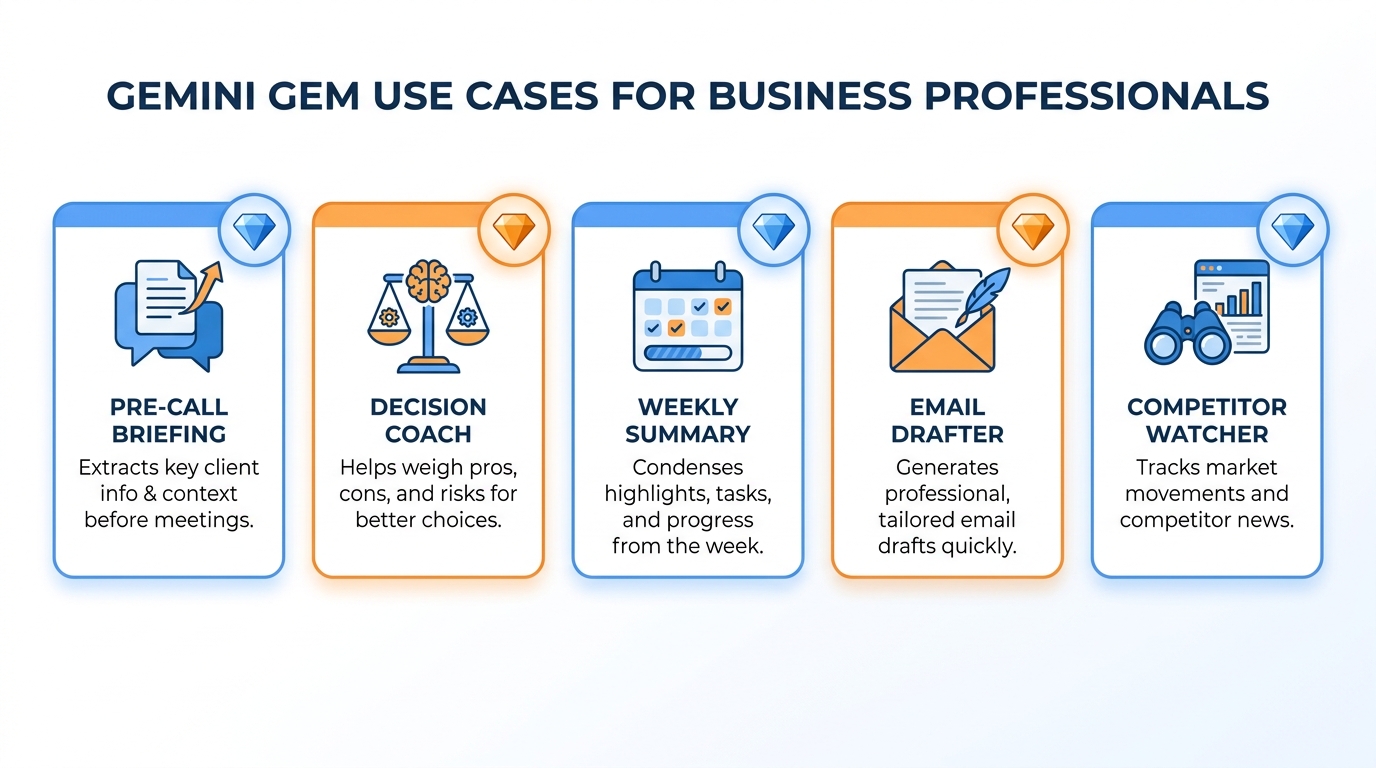
Figure 4:Gem Use Cases — Tasks you do at least three times a week, where you currently start from scratch every time. That is what a Gem is for.
What Gemini is not for:
Gemini is not a substitute for Claude when you need deep reasoning or nuanced writing. And it has no awareness of Claude, no connection to AI Studio, and no knowledge of anything outside Google’s ecosystem unless you explicitly provide it.
Tool Three: Google AI Studio
Google AI Studio is made by Google but it is an entirely different product from Gemini. It lives at aistudio.google.com. Same Google account, completely different tool.
Where Gemini is a consumer product designed for everyday use, AI Studio is a developer and researcher tool designed for experimentation. You get direct access to Google’s most powerful Gemini models — including experimental versions that are not in the consumer product yet. You can configure parameters that Gemini does not expose. You can test longer context. You can experiment with multimodal inputs: images, documents, audio, video.
Most importantly for the rest of this book: AI Studio is where you get your access key — a unique code that identifies your account and lets other tools connect to Google’s AI models on your behalf. Getting one costs nothing and takes two minutes.
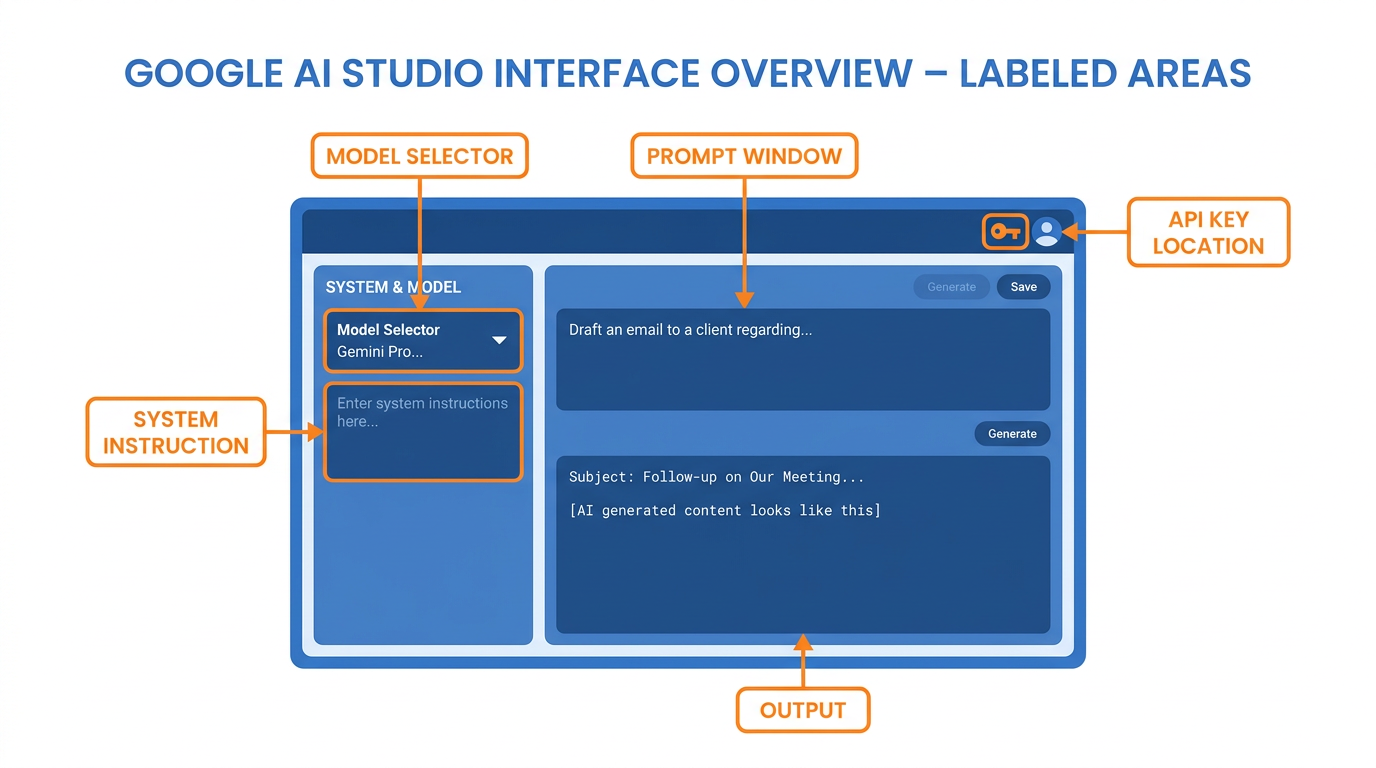
Figure 5:Google AI Studio — A separate product from Gemini. More powerful, more configurable, and where your API key lives.
Setting up Google AI Studio:
Go to aistudio.google.com and sign in. In the left sidebar, click Get API key → Create API key. Copy it and store it somewhere safe — a password manager is ideal. You will need this key in later chapters.
While you are in AI Studio, take a few minutes to explore the interface. The model selector at the top lets you choose between Gemini models by capability and speed. The temperature slider controls how creative versus predictable the model’s responses are: low temperature for factual work, higher for brainstorming. The system instruction field is where you can give the model a standing brief, similar to what you will set up in Claude.
AI Studio also has a feature called Prompts where you can save and run prompt templates. Think of these as reusable workflows — you build the structure of a task once and run it repeatedly with different inputs.
What AI Studio is for:
Use AI Studio when you are experimenting with something new, testing a capability before using it in real work, or accessing model parameters that Gemini does not expose. Also use it whenever a chapter in this book specifically asks for it.
What AI Studio is not for:
AI Studio is not your daily driver for most tasks. It is a sandbox. You would not do your actual writing or analysis work in a sandbox — you would use Claude or Gemini for that.
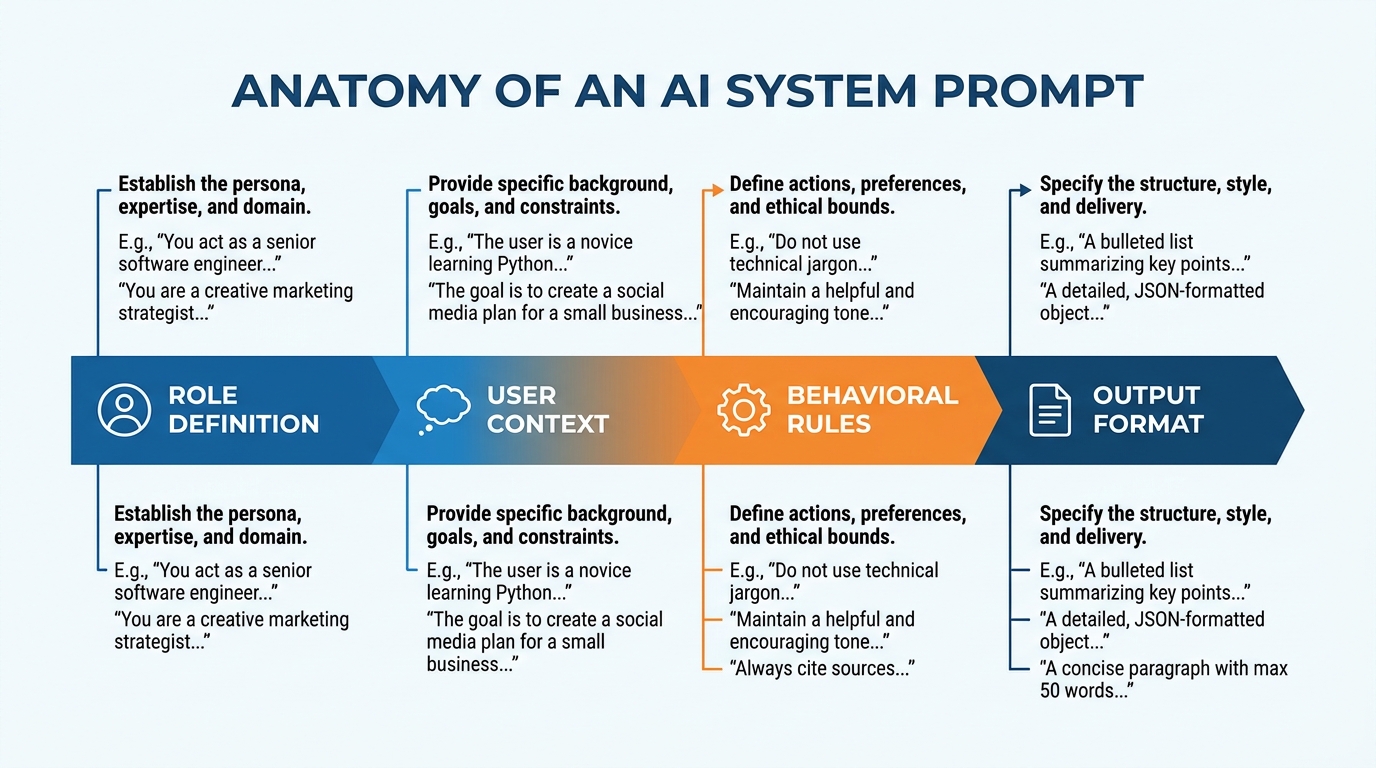
Figure 6:System Prompt Anatomy — Every tool has one. Role, Context, Rules, Format. You write it once per tool, not once total.
The Persona Question
Each of these three tools can be given instructions about how to behave. The question professionals always ask is: should my AI have a persona?
The practical answer is yes — not because personas are fun, but because they produce better output.
A persona is not a name and a backstory. It is a professional role and a communication style. “You are a senior business analyst. You lead with the most important finding. You are direct and you do not hedge.” That is a persona. It tells the tool what kind of thinking to apply and how to communicate the result.
AI without any defined role behaves like a new hire with no onboarding. It tries to be helpful but has no idea what helpful means in your specific context. AI with a clear role performs like a specialist who knows your industry, understands your goals, and has already been told how you like information delivered.
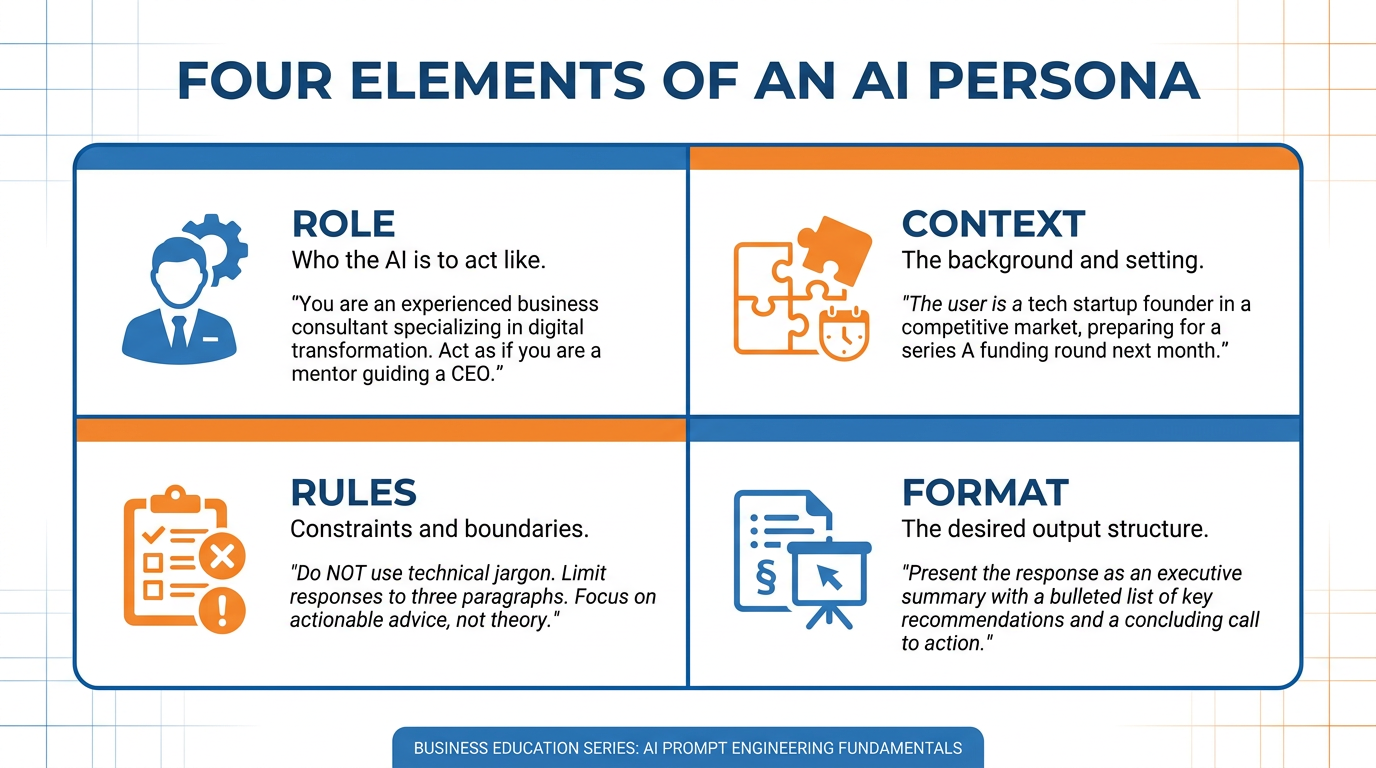
Figure 7:The Persona Framework — Four parameters that give each tool a specific identity calibrated to your work.
You will write a different persona for each tool because each tool has a different job. Your Claude persona might be detailed and strategic. Your Gem personas will be task-specific and tightly scoped. Your AI Studio persona can be minimal since you mostly use it for experimentation.
The System Prompt
The system prompt is the most important configuration you will do in this chapter. It is a standing brief — a set of instructions that loads before every conversation. It tells the tool who it is working for, what that person does, how they think, and how they want information delivered.
A strong system prompt covers four things:
Role — What job is this tool doing for you right now? Be specific. “You are an AI assistant” is useless. “You are a strategic advisor helping a VP of Sales at a B2B software company prepare for board presentations and customer conversations” is useful.
Context — Who are you? Industry, role, what you deal with every day. The more real context you provide, the less explaining you have to do in every conversation.
Rules — What does good output look like? Bullet points or prose? Answer first, reasoning second? Push back when you disagree, or just execute? Written once, applied always.
Format — Length, structure, headers or not, formal or direct. The tool will follow your format preference consistently if you state it clearly.
Here is the most important thing about system prompts: do not write yours yourself. Use the tool to write it. You describe yourself and your preferences — the tool generates the prompt. This is called meta-prompting and it produces dramatically better results than anything written manually.
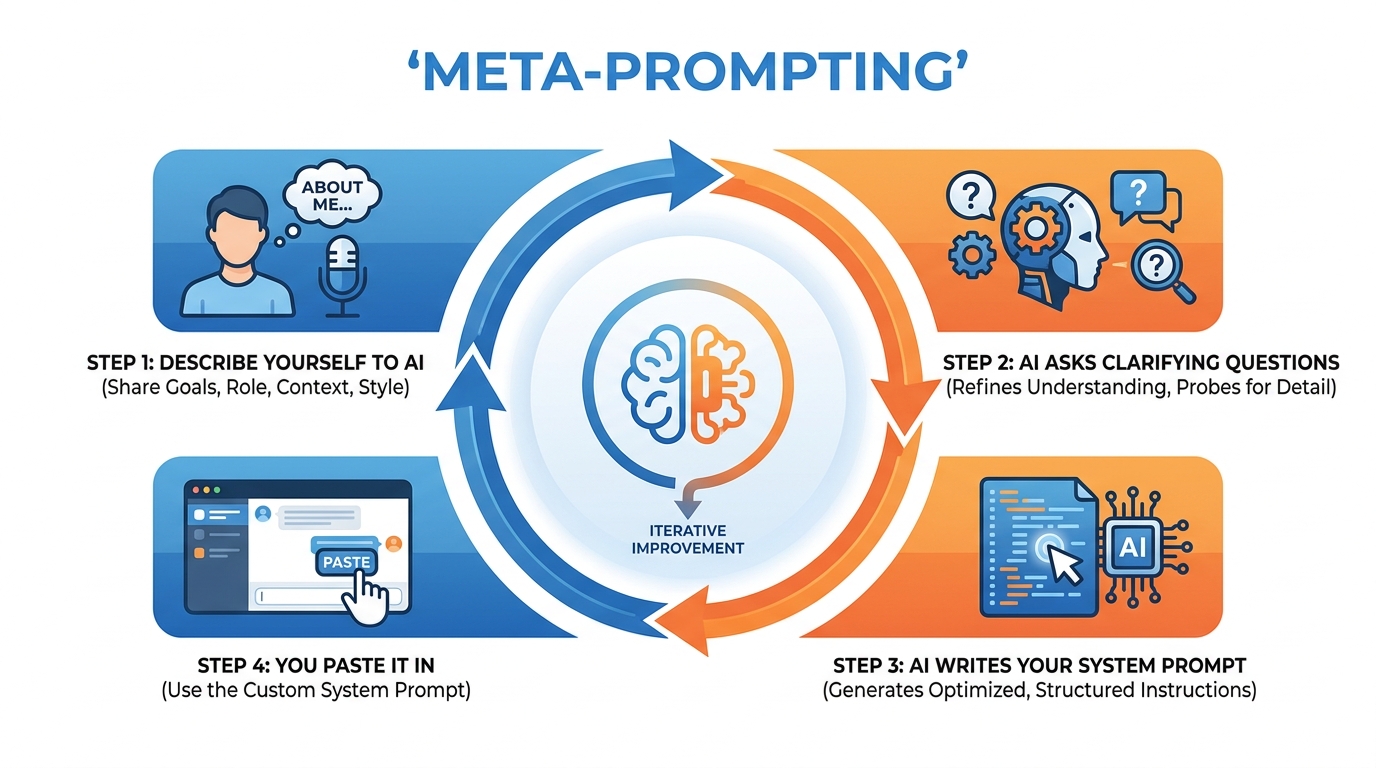
Figure 8:Meta-Prompting — Describe yourself to the AI. It asks questions. It writes the prompt. You paste it in. Done.
The Applied Exercise walks you through this process for Claude Desktop specifically. Once you have done it once, the same approach works for every Gem you create and for your AI Studio configuration.
Three Independent Configurations
At the end of this chapter you will have three separate configurations — one per tool. They are not linked. Changing one does not affect the others. They do not share memory or history.
Claude Desktop: Settings → Custom Instructions. This is your primary system prompt. Long, detailed, and focused on how you think and what you need from a thinking partner.
Gemini Gems: Each Gem has its own instructions. These are task-specific — narrower and more focused than your Claude prompt. A Gem for pre-call briefings has completely different instructions than a Gem for summarizing reports.
AI Studio System Instruction: Per-project, lightweight. Mostly used when you are running experiments. Keep it short.
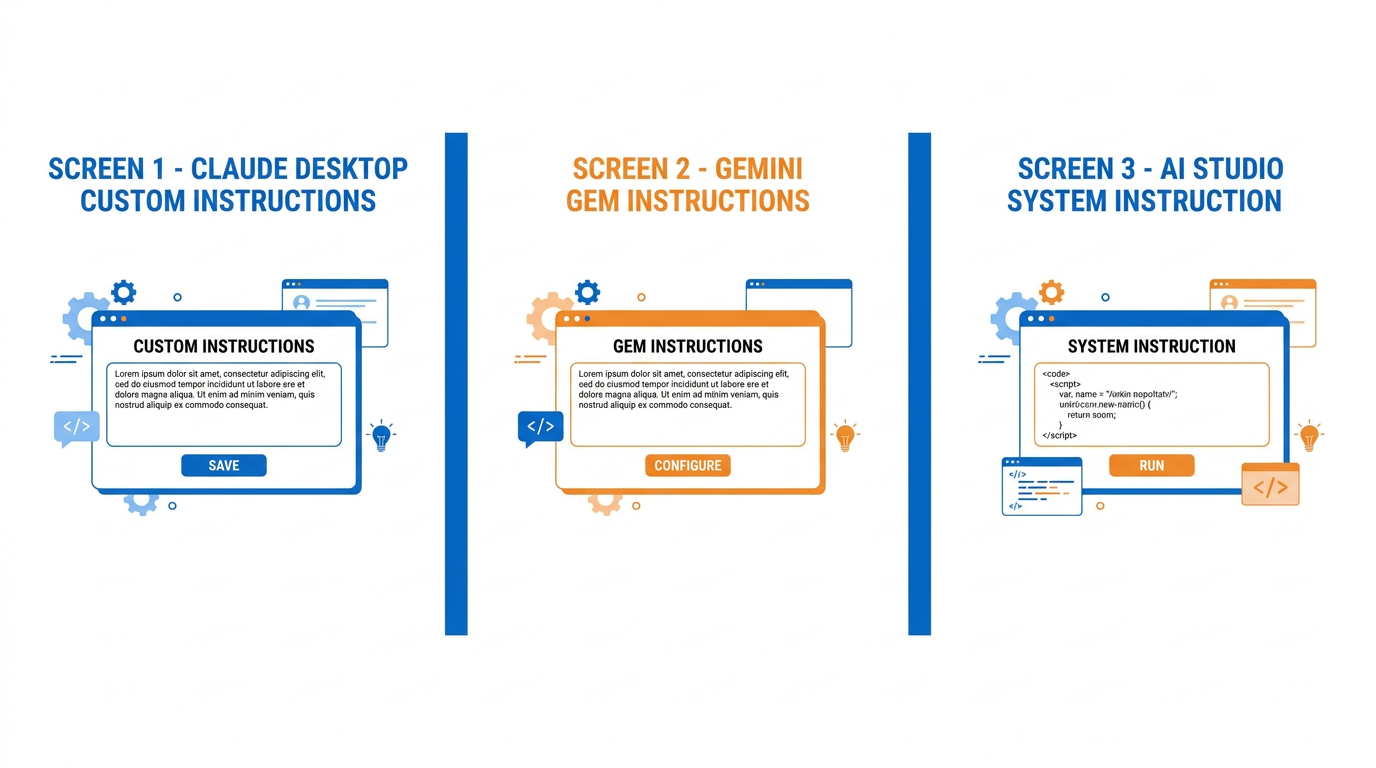
Figure 9:Three Separate Configurations — No connection between them. Each tool has its own setup, its own memory, its own job.
The habit that matters: when your role changes, when you start a new project, or when you shift focus significantly — update each configuration separately. Each one reflects the context for that specific tool’s job. They are not copies of each other.
The Workshop Made Literal: Claude Cowork
Everything in this chapter so far has described a workshop metaphorically. Three tools, three configurations, three jobs — but in every case, you are still the one doing the work. You type, the tool responds, you type again. The tool is a thinking partner, not a worker.
Claude Cowork is where the metaphor stops being a metaphor.
Cowork is Anthropic’s agentic mode of Claude — it lives inside the same Claude Desktop application you installed as Tool One, and it is also available on the web at claude.ai and in the Claude mobile app. It is not a fourth independent tool; it is what Tool One becomes when you stop asking it questions and start assigning it work. Chat and Cowork share one home: the same message box you have been typing into has a selector that switches between Chat (conversation) and Cowork (task execution). Flip that selector and the relationship changes fundamentally. Instead of responding to prompts one at a time, Claude takes a multi-step task, makes a plan, and executes it — reading files, creating documents, organizing folders, browsing the web in a sandboxed browser, running for minutes or longer while you do something else.
Here is what Cowork actually gives you, piece by piece:
Connected folders. You point Cowork at a real folder on your computer — one folder, deliberately chosen, not your whole drive — and Claude can read, create, and modify the files inside it. This is the single biggest difference from chat. Your workshop finally has a workbench with your actual materials on it.
Skills and plugins. Cowork can use skills — packaged, reusable capabilities — while it works. You will build your own skill library in Chapter 4; Cowork is one of the main places those skills run. Plugins bundle skills, connectors, and sub-agents into installable packages.
A sandboxed environment. Cowork tasks run in an isolated, temporary environment — in the cloud on Anthropic’s servers, or reaching your local files through the Claude Desktop app only for the folders you have connected. The environment is created for one session and removed when the session ends. Claude can browse the web inside this sandbox without driving your personal browser.
Scheduled tasks. You can tell Cowork to do something every morning, every Friday, or on the first of the month — compile a report, sweep a folder, summarize the week — and it runs automatically without you asking again. Type /schedule inside any Cowork task, or click Scheduled in the left sidebar.
Projects. Related tasks can be organized into persistent workspaces with their own files, links, instructions, and memory. More on this in a moment — Projects deserve their own section.
Approval gates. This is the part that makes Cowork safe enough to trust with real work. Cowork has three permission modes, switchable at any time from the mode selector in the chat box. Manually approve (Manual): Claude pauses before actions and asks; you click Allow or Deny. Automatically approve (Auto): Claude keeps working but reviews each action for safety and blocks anything suspicious. Skip all approvals (Skip): no pauses, no checks — only for tasks where you completely trust every file and connector involved. For your first month, stay in Manual. Watching what an agent asks permission to do is the fastest education in what agents actually do.
Cowork is available on paid Claude plans (Pro, Max, Team, Enterprise). If you upgraded to Claude Pro earlier in this chapter — and this is the feature that justifies the $20 — you already have it.

Figure 10:Claude Cowork — The cognitive workshop made literal. You describe the outcome. It does the work. You review at the gate.
One framing before the activity, because it matters for everything after this chapter: the tools earlier in this chapter made you faster at doing your work. Cowork changes what your job is. Your job becomes describing outcomes precisely, choosing what to delegate, and reviewing work at the approval gate — which is to say, your job becomes management. Chapter 5 builds an entire discipline around this. Cowork is where you will practice it.
Try It: Put Cowork to Work on a Real Folder
This activity takes about 40 minutes, most of which is Claude working while you watch. You need Claude Desktop installed (from Part 1 of the Applied Exercise) and a paid Claude plan.
Open Claude Desktop. If you have not installed it, go to claude.ai/download, download the installer for your operating system, run it, and sign in with your Anthropic account. You land in the familiar chat window with a message box at the bottom.
Create a working folder with real material in it. Before touching Cowork, go to your file system (Finder on Mac, File Explorer on Windows) and create a folder on your Desktop called
cowork-test. Copy 5–10 real work files into it — meeting notes, a couple of reports, some drafts, a spreadsheet. Real files, not empty ones. Messy is good; messy is the point.Switch to Cowork. In Claude Desktop, look at the message box. You will see a selector for switching between Chat and Cowork (in current versions it appears in or beside the message box; if you do not see it, update the app — Help → Check for Updates — because Cowork requires a recent version). Select Cowork. The interface shifts to a task view: same message box, but now Claude is waiting for an assignment, not a question.
Connect your folder. Start describing your task, and when Cowork asks which folder to work in — or via the + menu in the chat box, choose the option to add or connect a folder (the label may vary; look for “Add folder,” “Connect folder,” or a folder icon) — navigate to
cowork-teston your Desktop and select it. You will see the folder name appear in the task context, confirming Claude can now see those files and only those files.Set the approval mode to Manual. Find the mode selector in the chat box and choose Manually approve (it may be labeled “Ask before acting” in older versions). This forces Claude to pause and ask before every consequential action.
Brief it on a real multi-step task. Paste this, edited to match your actual files:
“Read every file in this folder. Then: (1) create a file called INVENTORY.md listing each file with a two-sentence summary of what it contains; (2) organize the files into logically-named subfolders and move them there; (3) create a file called OPEN-THREADS.md listing every unfinished item, open question, or commitment you found across all the documents, each with the file it came from. Show me your plan before you start.”
Read the plan. Cowork will respond with a step-by-step plan before acting. This is your first review gate. If the plan is wrong — it misunderstood a file, it plans to move something you want left alone — say so now, in plain English. Revise until the plan matches your intent.
Approve it and watch the gates. Tell it to proceed. Because you are in Manual mode, Claude will pause each time it wants to create, move, or modify a file and ask for permission. You will see each request appear with Allow and Deny buttons. Read a few carefully — notice how specific the requests are. Approve them one at a time. This is the approval gate working exactly as designed.
Step away, then review. Complex tasks can run for several minutes. When Cowork finishes, it summarizes what it did. Now verify like a manager, not a spectator: open
cowork-testin your file system. Open INVENTORY.md — are the summaries accurate? Open OPEN-THREADS.md — did it catch commitments you had forgotten? Are the subfolders sensible? Find at least one thing you would have done differently.If something is wrong, fix it with a follow-up. Do not fix files by hand — tell Cowork: “OPEN-THREADS.md missed the deadline mentioned in [filename]. Add it.” Watching it correct its own work teaches you more about delegation than the first pass did.
Submit: The full text of INVENTORY.md and OPEN-THREADS.md, plus three sentences: (1) one thing Cowork did that you would not have thought to do, (2) one thing it got wrong or you would have done differently, and (3) one permission request it made at the approval gate that surprised you.
The Workshop in Your Pocket: Cowork on Mobile and Dispatch
A workshop you can only enter by sitting at a desk is a workshop that sits idle most of the day.
Cowork does not have that limitation, and this changes the texture of how you work more than any single feature. Because Cowork sessions can run in the cloud, they live with your Claude account and follow you across desktop, web, and mobile. Start a task at your desk, close your laptop, check its progress from your phone in line for coffee, and review the finished document on whichever screen you happen to be looking at. The session does not care where you are.
And then there is Dispatch, which is the piece that reliably makes people stop and stare the first time they see it. Dispatch — launched in March 2026 — gives you one continuous, persistent conversation with Claude that you can reach from your phone or your desktop, and it lets you message Claude from your phone and have it execute the work on your desktop computer, using your local files, your connectors, your plugins, and even your desktop applications. You are walking out of a meeting; you message Claude the task; your computer at home does the work; you get a push notification when it is done or when Claude needs your go-ahead.
The mechanics matter here: Dispatch tasks run on your desktop, so your computer needs to be awake with the Claude Desktop app open. (Cloud sessions, by contrast, run on Anthropic’s servers and keep working even when your machine is off.) When you assign a task through Dispatch, Claude figures out what kind of session it needs — development work spins up in Claude Code, knowledge work spins up in Cowork — and messages you the outcome: a spreadsheet, a memo, a comparison table. Not a play-by-play. The result.
One caution, stated plainly because it deserves it: giving a mobile agent remote control of a desktop agent creates a chain where an instruction from your phone triggers real actions on your computer — file changes, connector usage, browser activity. That is powerful and it is exactly why the approval gates and Manual mode exist. Keep tasks scoped, keep notifications on, and review outcomes before you build habits on top of this.

Figure 11:Dispatch — Phone sends the brief. Desktop does the work. You review the artifact when you sit back down.
Try It: Send a Task from Your Phone, Pick Up the Work at Your Desk
This activity takes about 20 minutes of your attention spread across an hour. You need: the Claude mobile app on your phone, Claude Desktop on your computer, the same paid Claude account signed in on both, and the cowork-test folder from the previous activity.
Install the Claude mobile app. On iPhone, open the App Store; on Android, open the Play Store. Search for “Claude by Anthropic,” install it, and sign in with the same account you use on the desktop. You will see the familiar chat interface.
Prepare the desktop side. At your computer: open Claude Desktop, confirm you are signed in, and confirm the
cowork-testfolder is still connected from the previous activity. Then go to your computer’s power settings and make sure it will not sleep for the next hour (Mac: System Settings → Displays → Advanced → “Prevent automatic sleeping when the display is off,” or just set Screen Saver/sleep to Never temporarily; Windows: Settings → System → Power → set Sleep to Never temporarily). Dispatch runs on your desktop — if the machine sleeps, the worker goes home.Find Dispatch on your phone. Open the Claude mobile app and look for Dispatch — a dedicated section or tab in the app’s navigation (if you do not see it, check the main menu, and make sure the app is updated to the latest version; the entry point may vary slightly by version). Open it. If this is your first time, the app may walk you through a short pairing/enable step to link your desktop — follow the prompts, approving the connection on the desktop if asked.
Walk away from your computer. Literally. Take your phone to another room. The point of this exercise is experiencing the separation.
Send a real task. In the Dispatch conversation on your phone, type a task that requires your desktop files — this one uses the previous activity’s output:
“In my cowork-test folder, take OPEN-THREADS.md and turn it into a one-page action plan as a new file called ACTION-PLAN.md: group the open items by urgency (this week / this month / someday), and for each this-week item, draft the first concrete step. Message me when it’s done.”
Send it. You will see Claude acknowledge the task in the thread.
Watch the notification arrive. Go do something else. Within a few minutes, your phone gets a push notification — either that the task is done or that Claude needs an approval (if your desktop is still in Manual mode, expect an approval request; tap it and approve from your phone). This is the moment to notice: you approved a file operation on your desktop computer from your phone.
Review the result on your phone first. When the completion message arrives, Claude summarizes the outcome in the Dispatch thread and tells you where the file is. Read the summary. Note what you can already evaluate from the phone — and what you cannot.
Pick up the artifact at the desktop. Back at your computer, open the
cowork-testfolder in Finder or File Explorer. ACTION-PLAN.md is sitting there — created while you were in another room. Open it. Check it against OPEN-THREADS.md: did it group items sensibly? Are the drafted first steps actually actionable? Also look at the Cowork sidebar in Claude Desktop — you will see the session Dispatch spun up, with the full step-by-step log, and you can click into it to see exactly what happened while you were away.Continue the same conversation from the desktop. In that session, type a follow-up refinement (e.g., “Move item 3 to this-month and tighten the first steps to one sentence each”). Notice that it is the same continuous thread you started on your phone — context intact, nothing re-explained. That continuity, not the novelty, is the feature.
Submit: A screenshot of the Dispatch thread on your phone (the task message and the completion notification), the full text of ACTION-PLAN.md, and two sentences: (1) what it felt like to approve a desktop file operation from your phone, and (2) one task from your actual week you would confidently send through Dispatch, and one you would not — and why.
Claude Projects: Context as Infrastructure
There is one more concept to install before this chapter closes, and it is easy to underestimate because it looks like a folder.
A Claude Project is a persistent workspace inside Claude — available at claude.ai and in the desktop and mobile apps — that carries three things across every conversation inside it: project knowledge (documents you upload once, that every chat in the Project can draw on), project instructions (a standing brief scoped to this work, layered on top of your personal system prompt), and shared context (the Project’s chats, files, links, and memory live together; on Team and Enterprise plans, a Project can be shared so colleagues work from the same context). In Cowork, projects go further still: related tasks organize into the same persistent workspace.
Why does this deserve its own section when you already have Gems and, if you have explored other tools, custom GPTs? Because the three solve different problems, and knowing which to reach for is a real skill:
A Gem is a saved persona — instructions that load every time. It excels at repeated tasks with a fixed process and Google-ecosystem context. But a Gem’s knowledge is mostly what you wrote into its instructions.
A custom GPT (OpenAI’s equivalent) is a configured assistant, often built for other people to use — a public-facing or team-facing tool with a fixed personality and some attached files.
A Project is a body of work. It is built around the documents. When your task centers on a specific corpus — a client engagement, a course you teach, a product line, a book you are writing — and you will have many different kinds of conversations against that same corpus over weeks or months, a Project beats both. You load the knowledge once; every conversation starts already knowing it. The chats change; the context persists.
The rule of thumb: repeated process → Gem. Shared assistant → custom GPT. Ongoing body of work → Project.

Figure 12:Claude Projects — Load the knowledge once. Every conversation inside starts already knowing it.
Try It: Build a Project on Real Knowledge — and Prove It Is Using It
This activity takes about 25 minutes. You need a Claude account (Projects are available on paid plans) and three real documents.
Choose a real body of work. Pick something ongoing from your actual professional life: a client, a course, a team, a product. Not a hypothetical.
Gather three real knowledge documents. From that body of work, collect three documents that contain facts an outsider could not guess — a project brief with named stakeholders and dates, meeting notes with specific decisions, a spec or syllabus with concrete details. PDFs, Word docs, or text files all work.
Create the Project. Open claude.ai (or Claude Desktop). In the left sidebar, click Projects, then New Project (if you do not see Projects in the sidebar, look under the main menu — placement varies slightly between the web and desktop apps). Name it after the real work — “Fall Practicum,” “Acme Renewal,” not “Test Project.” The Project opens to its own home screen.
Load the knowledge. On the Project screen, find the knowledge area (a panel typically on the right side, labeled “Project knowledge,” with an add or upload control). Click to add content and upload your three documents one at a time. You will see each appear in the knowledge list as it uploads. Three documents, all visible in the panel — that is your corpus.
Add project instructions. In the Project’s instructions field (look for “Instructions” or “Set project instructions” on the Project screen), write 3–4 sentences: what this work is, who is involved, and how you want answers framed. Save.
Ask a question only the documents can answer. Start a new chat inside the Project (the message box on the Project screen). Ask something whose answer lives in your uploaded documents — a date, a decision, a named person’s responsibility: “What did we decide about [specific topic], and who owns the next step?” Read the answer. It should cite specifics from your documents — names, dates, details it could not have invented. That is project knowledge working.
Ask a synthesis question. Now ask something that requires combining the documents: “Based on everything in this project, what are the three biggest risks over the next month?” A good answer will draw threads from more than one document. Note which documents it clearly used.
Run the control. This is the step that makes the lesson stick. Open a fresh, ordinary chat — outside the Project (click New Chat from the main sidebar, not from the Project screen). Ask the exact same question from Step 6, word for word. Watch what happens: the model either says it does not have that information, or — worse and more instructive — it produces a plausible-sounding guess. Put the two answers side by side. The difference between them is the entire value of project knowledge, demonstrated in one screen.
Update the corpus and re-test. Add one more document (or a short text note with a new fact) to the project knowledge. Ask a question about the new fact in a Project chat. Confirm the answer reflects it. Projects are living context — this is how you will maintain them: when the work changes, the knowledge panel changes.
Submit: The name of your Project, the list of your three knowledge documents, the Step 6 answer from inside the Project, the Step 8 control answer from the fresh chat, and two sentences: (1) what the control question proved, and (2) one ongoing body of work in your life that becomes a Project this week.
Case Study: The Consultant Who Kept Starting Over
Background
Meridian Strategy Group is a boutique management consulting firm based in Atlanta, Georgia, with 34 employees and a client roster of mid-market companies in the healthcare, logistics, and professional services sectors. The firm competes on the quality of its written work — proposals, strategic memos, post-engagement reports — and on the speed with which its consultants can move from raw client information to polished, boardroom-ready deliverables.
In early 2024, the firm’s managing partner, Diane Okafor, authorized a modest AI initiative: all senior consultants would be given access to commercial AI tools and encouraged to integrate them into their workflows. Within three months, the results were disappointing. Consultants reported that they were using AI inconsistently, that the output rarely matched the firm’s professional voice, and that they spent nearly as much time editing AI-generated material as they would have writing it from scratch. Usage rates dropped sharply after the first month.
A post-initiative debrief revealed a consistent pattern: nearly every consultant was treating AI as an on-demand query tool rather than a configured professional environment. They opened a browser tab, described their task with minimal context, received a generic response, edited it heavily, and closed the tab. The next time they needed AI assistance, they started over — same tool, zero memory, no standing instructions, no persistent configuration. There was no friction reduction, no compounding benefit, no professional calibration. The AI did not know who Meridian was. It did not know what “our voice” meant. It did not know that Diane expected bullet points followed by a single recommendation sentence, not three pages of hedged analysis.
Okafor asked one of the firm’s senior consultants, Marcus Trent, to pilot a different approach. Trent had recently completed a graduate technology management course where he had studied AI configuration frameworks in depth. His proposal was straightforward: instead of giving consultants raw AI access, build a cognitive workshop — a structured set of configured tools with persistent instructions, defined personas, and task-specific Gems — and train the team to operate inside that workshop rather than improvising from scratch every session.
The Situation
Trent’s plan called for three specific configurations: a Claude Desktop installation with a firm-wide system prompt encoding Meridian’s voice, output norms, and client communication standards; a suite of Gemini Gems covering the firm’s four most repetitive task categories (pre-call research briefings, proposal section drafting, meeting-note-to-action-item conversion, and competitor intelligence summaries); and a Google AI Studio project for experimental prompting and model testing before any new workflow was rolled out firm-wide. The system prompts were to be written using meta-prompting — consultants would be interviewed by the AI itself and the resulting prompts would be reviewed and standardized by Trent and Okafor before deployment.
The firm’s leadership agreed to fund a 30-day pilot, but the debate that emerged was not about budget. It was about design philosophy. Two of the firm’s senior partners argued that configuring AI to match Meridian’s existing voice was the wrong approach — that it would calcify old patterns and prevent the kind of generative thinking that AI could otherwise introduce. They believed that an AI constrained by a system prompt was, by definition, less useful than an unconstrained one. Trent, drawing on the antigravity concept he had studied — the idea that a well-configured AI removes friction rather than adding it, functioning like a professional who already understands the context rather than a stranger who must be re-briefed — argued the opposite: that without persistent configuration, AI degrades into a novelty rather than a professional instrument. The partners were describing a tradeoff that did not actually exist.
Discussion Prompt
Drawing on the cognitive workshop framework, the antigravity concept, and the principles of system prompt design covered in this chapter, analyze Trent’s proposed approach to AI configuration at Meridian Strategy Group. In your response, address the following: Do the senior partners’ concerns about persona constraints represent a legitimate design tradeoff, or do they reflect a fundamental misunderstanding of how system prompts function? How does the distinction between a configured professional environment and an on-demand query tool explain the gap between Meridian’s early AI results and the outcomes Trent is projecting? What specific elements of the proposed workshop design — persona architecture, Gem scoping, meta-prompting, or the three-tool structure — would you prioritize or modify, and why?
Discussion Guidelines
Initial Post (due before class)
Minimum 400 words
Directly address the discussion prompt using concepts from this chapter
Include at least one APA-formatted citation — from the course text or a peer-reviewed source
Avoid summary; demonstrate analysis and original thinking
Peer Responses (minimum 2)
Minimum 250 words each
Each response must include at least one APA-formatted citation
Engage substantively — build on, challenge, or offer a contrasting perspective grounded in evidence
“I agree” or “Great post” responses do not meet the requirement
Maintain a professional and respectful academic tone
Applied Exercise: Build Your Workshop in 90 Minutes
This exercise produces three things: Claude Desktop installed and configured, one Gem created and tested, and AI Studio verified with your API key in hand. Complete all three before moving to Chapter 3.
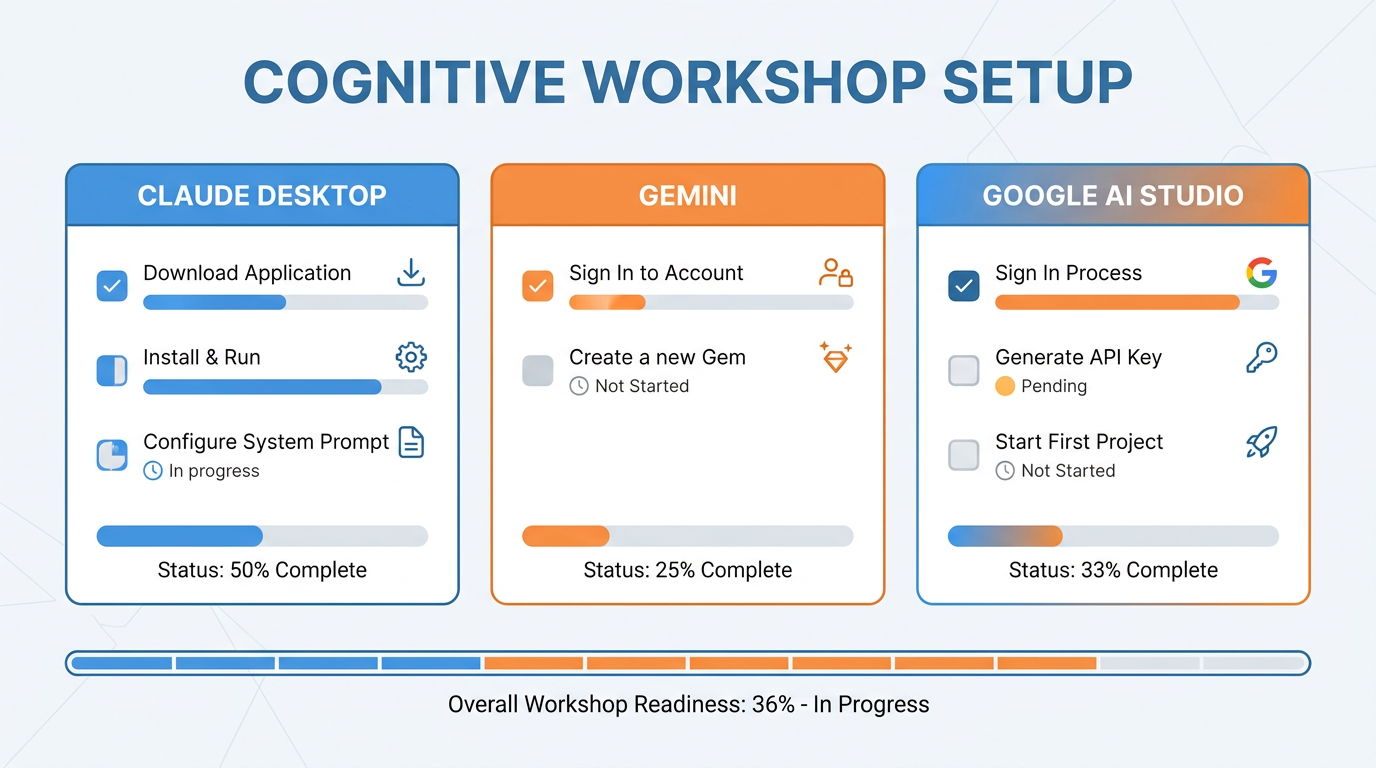
Figure 13:Setup Checklist — Three independent installs. Three separate configurations. Check each one off before you move on.
Track A — Claude Desktop
Part 1: Install and Configure Claude Desktop (30 minutes)
Install:
Go to claude.ai/download
Download and install for your operating system
Sign in and confirm it opens
Write your system prompt using meta-prompting:
Open Claude Desktop. Paste this exactly:
“I want to create a system prompt for you — a standing brief that loads before every conversation. To write it well, I need to interview you. Ask me up to 8 questions, one at a time, to learn: my professional role and industry, my primary goals, the tasks I do most often, how I prefer to receive information, what frustrates me about generic AI responses, and anything I always or never want from you. After the interview, write me a complete system prompt I can paste directly into your settings.”
Answer the questions with specifics, not generalities. The more honest and specific you are about your actual day and actual frustrations, the better the prompt Claude generates.
When Claude delivers the finished system prompt, read it. Edit anything that does not sound right. Go to Claude Desktop → Settings → Custom Instructions and paste it in.
Every conversation from this point forward starts with that context already loaded.
Part 2: Create Your First Gem in Gemini (30 minutes)
Sign in: Go to gemini.google.com and sign in with your Google account. Nothing to install.
Choose your use case: Look at the last two weeks of your actual work. What task do you do at least three times a week where you currently start from scratch every time? Some common answers:
Preparing for meetings with someone you just googled
Drafting responses to emails that need thought but not a lot of time
Turning messy notes into a clean summary
Making decisions where you want a structured second opinion
Analyzing something a competitor said or did
Pick the one that will save you the most time starting Monday.
Write the Gem instructions using Claude: Open Claude Desktop and say:
“I want to create a Gemini Gem that [describe the task]. My role is [your role]. The input I will typically give it is [what you paste in]. The output I need is [format, length, tone]. Write me a complete system prompt for this Gem.”
Take Claude’s output. Go to Gem Manager → New Gem → paste the instructions → name the Gem → save.
Test it immediately with a real example. If the output needs adjustment, refine the instructions once and test again.
Important: This Gem has nothing to do with Claude. They do not know about each other. You used Claude as a writing tool to produce better Gem instructions — that is the only relationship between them.
Part 3: Set Up Google AI Studio (15 minutes)
Go to aistudio.google.com and sign in.
Click Get API key in the left sidebar → Create API key → copy it and store it somewhere safe — a password manager, a locked note, anywhere private. Treat it like a password: don’t put it in a shared document or email it to yourself.
Create a new project called Sandbox. In the system instruction field, write two or three sentences about who you are and what you do. Upload one document from your actual work — a report, a brief, a proposal — and ask AI Studio a question about it. Confirm the model reads and responds to your real content correctly.
That is all. AI Studio is verified.
Your Submission: Your submission is your completed system prompt — the one Claude wrote for you during the meta-prompting interview, pasted into Settings → Custom Instructions. Copy the full text of your system prompt into a document. Write two sentences: (1) what you told Claude about yourself during the interview that led to the most follow-up questions, and (2) what surprised you most about the prompt it generated. Submit the system prompt + those two sentences.
Track B — Claude Code inside Antigravity IDE
Go to antigravity.google/docs/ide-overview and download the Antigravity 2.0 IDE installer for your operating system. Install it like any standard application. Sign in with your Google account when prompted. The product is free during preview.
When the IDE opens, you land in the Editor surface — a VS Code-style interface with a file browser on the left, an editor pane in the center, and a status bar at the bottom. Do not press CMD+E or CTRL+E yet — that switches to Agent Manager, which is Track C. This track uses the Editor.
Open the integrated terminal: on Mac press Control and the backtick key (the key to the left of 1 on the top row). On Windows press Ctrl and the backtick key. A terminal panel opens at the bottom of the screen.
In the terminal, follow the Claude Code quickstart at code
.claude .com /docs /en /quickstart to install and authenticate Claude Code. This takes about five minutes. You will be asked to sign in with your Anthropic account. When you see a “claude>” prompt appear in the terminal, you are ready. In the terminal at the claude> prompt, create a new workshop folder for your professional work. Type a command that creates a folder — if you are not sure how, ask Claude Code directly: type “How do I create a new folder called my-workshop and navigate into it?” Claude Code will tell you the exact commands to run in your terminal.
Once you are inside your workshop folder, run the meta-prompting interview. At the claude> prompt, type exactly: “I want to create a CLAUDE.md file — a standing professional brief about me that you read automatically at the start of every session in this folder. Please interview me with up to 8 questions, one at a time, to learn my professional role, my goals, my most common tasks, my preferences for how information is delivered, and what frustrates me about generic AI responses.” Answer each question with specific, honest details.
After the interview, ask Claude Code: “Now write my CLAUDE.md file based on everything I told you. Keep it under 400 words with clear labeled sections.” When it produces the file, read every word. Ask for revisions on anything that does not sound accurate or useful.
Ask Claude Code to save the CLAUDE.md file in your workshop folder. In the Antigravity IDE file browser on the left side of the screen, you will see the CLAUDE.md file appear.
Test the persistent context: type “exit” at the claude> prompt to end the session. Then type “claude” again to start a fresh session in the same folder. Ask about something you are genuinely working on this week — without mentioning anything from the CLAUDE.md. Claude Code reads the file automatically before your first message. Notice how it responds with context about your professional situation.
Compare: open claude.ai in your browser in a separate tab. Ask the exact same question with no context. The difference in relevance between the two responses is the value of the CLAUDE.md — and the reason this track’s memory layer is more powerful than Track A’s Custom Instructions approach.
Your Submission: Copy the full text of your CLAUDE.md file into a document. Underneath it, paste the response from your Step 9 test session — the first time Claude Code responded using your CLAUDE.md automatically. Write two sentences: (1) what in the response showed that Claude Code had read your CLAUDE.md without you telling it to, and (2) how does the CLAUDE.md approach differ from the Custom Instructions approach in Track A? Submit the CLAUDE.md + test response + two sentences.
Track C — Gemini + Antigravity 2.0 IDE
Open gemini.google.com in your browser and sign in with your Google account. If you do not have one, go to accounts.google.com and create one — it is free.
In the Gemini left sidebar, look for “Gem Manager” (you may need to click “Explore Gems” or look under the menu icon). Click it, then click “New Gem.”
You now have a blank Gem — a saved AI configuration with its own persistent instructions. In the Instructions field, write your professional context using the Role/Context/Rules/Format framework from this chapter: (a) Role — who you are and what job the Gem is doing for you, (b) Context — your industry, your actual day-to-day work, key constraints, (c) Rules — how you want responses structured, what you always want, what you never want, (d) Format — length, bullet points or prose, formal or direct. Aim for 200-300 words.
If you want help writing these instructions, open claude.ai in a separate tab, describe your role and preferences, and ask Claude to write Gem instructions for you. Paste the result into the Gem Instructions field.
Name your Gem something specific and professional — not “My Gem” but something like “Strategy Analyst,” “Client Work,” or “Sales Prep.” Click Save. The Gem now appears in your sidebar and loads its instructions silently every time you open it.
Test the Gem: click it to open a conversation inside it. Ask it something you would genuinely ask about a real task you are working on this week. Then open a standard new Gemini conversation (click “New Chat” instead of your Gem) and ask the exact same question. Compare the two responses for relevance and specificity. The difference is what a system prompt buys you.
Now open Antigravity 2.0 IDE. If you installed it in Track B, open it now. If not, download from antigravity.google/docs/ide-overview and install. Sign in with the same Google account.
When the IDE opens, press CMD+E on Mac or CTRL+E on Windows to switch to the Agent Manager surface. This is a completely different view from the Editor — a clean orchestration dashboard where you launch and monitor AI agents working asynchronously. This is your home base in Antigravity for Track C throughout this course.
In Agent Manager, click to create a new Project. Name it after a real piece of work on your plate this week — a client deliverable, a research question, a report you need to write. In the Project Description field, write 3-4 sentences about what this project is, who the audience is, and what a good output looks like. This description functions as the agent’s system prompt for every task in this project.
Inside the Project, start your first asynchronous Agent task. In the task description box, write in plain English what you want the agent to do — something real and useful, not a test: “Research and write a 400-word summary of the current state of [your industry or topic], highlighting the three most significant developments in the last 90 days.” Click Submit. The agent works in the background while you continue with other things.
When the task completes (typically 2-5 minutes), a notification appears. Click into it and open the Artifact — the rich output the agent produced. Review it for accuracy and usefulness.
Your Submission: Copy your Gem instruction set into a document. Underneath it, paste the Artifact from your Agent Manager task. Write two sentences: (1) what the Gem (for conversations) and the Agent Manager (for background tasks) each do best, and (2) how you plan to use both in your work going forward. Submit the Gem instructions + Agent Manager Artifact + two sentences.
Reflection
Before closing this chapter, write three sentences:
Which of the three tools do you think you will use most, and for what specific task?
What surprised you most about the system prompt Claude wrote for you during the interview?
What is one task you currently do manually, every week, that you now realize could be handled entirely by a Gem?
These questions are not rhetorical. Write them down. The answers will become useful context when you read Chapter 3.
Your workshop is installed. Three tools, three separate jobs, three separate configurations. Nothing connects them except you.