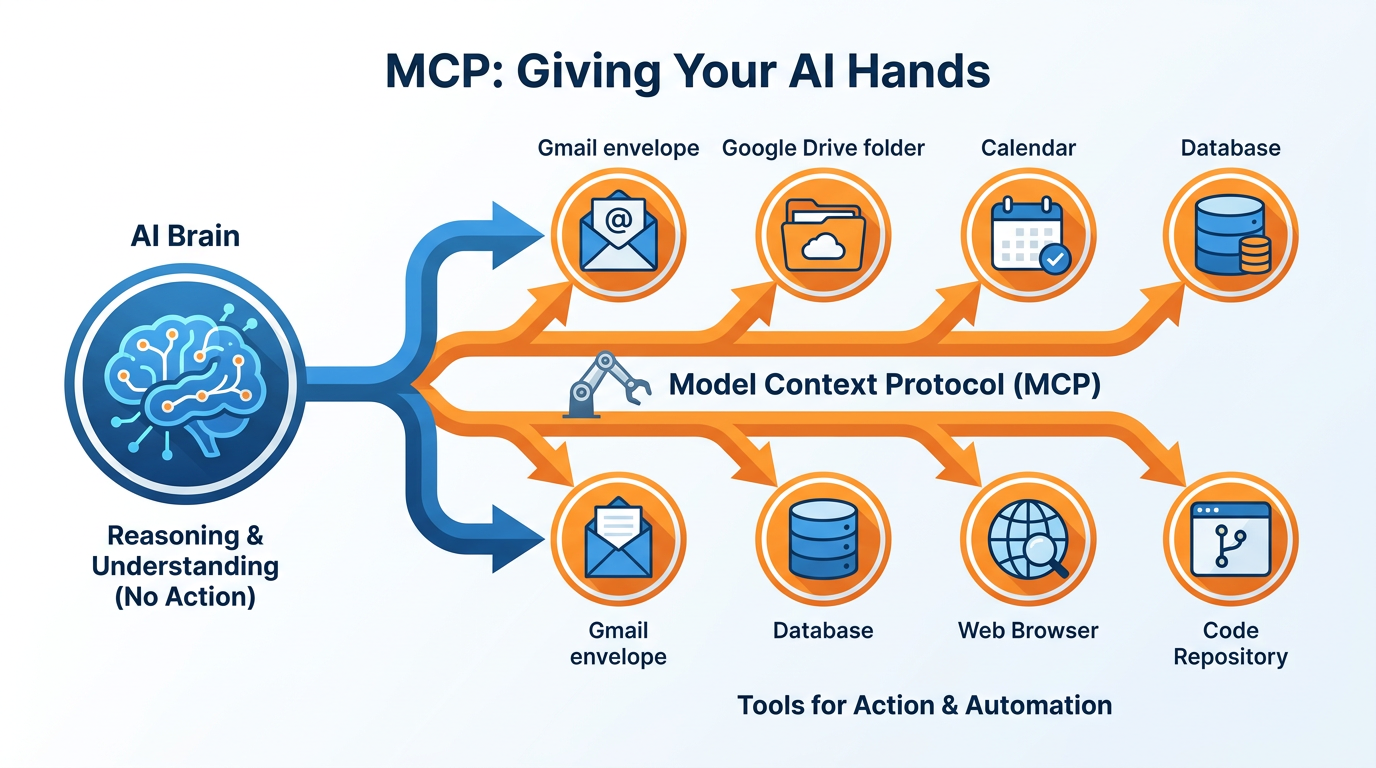
Figure 1:Giving Your AI Hands — Without MCP, your AI can only talk. With MCP, it can reach into your actual world.
Imagine hiring that brilliant analyst from Chapter 1 — the one with an IQ of 180 who has read everything ever published.
Now imagine they show up to work every day, and someone locks them in a room with no windows, no phone, no internet, and no files. The only information they get is whatever you walk in and read aloud to them.
They are still brilliant. They can still reason. But they are working blind — dependent entirely on what you manually bring them.
That has been the state of AI for most people. You have this extraordinary reasoning capability sitting in a chat window, and the only way to feed it your world is to copy and paste things into the conversation. Your emails. Your documents. Your calendar. Every piece of context, manually. Every session.
MCP ends that.
MCP — Model Context Protocol — is the technology that opens the door. It is an open standard, published by Anthropic, that gives your AI assistant a live connection to your actual world: your inbox, your files, your calendar, the web, your data. Not descriptions of these things that you typed in. The actual things themselves.
The moment MCP connects to your Gmail, Claude is not reading a summary of your emails you wrote. It is reading your emails. In real time.
This is not a feature. It is a transformation.
This chapter covers the three connections that will change how you work immediately — Google Workspace, Firecrawl, and Supabase — and maps the broader landscape of what else is possible.
What MCP Actually Is
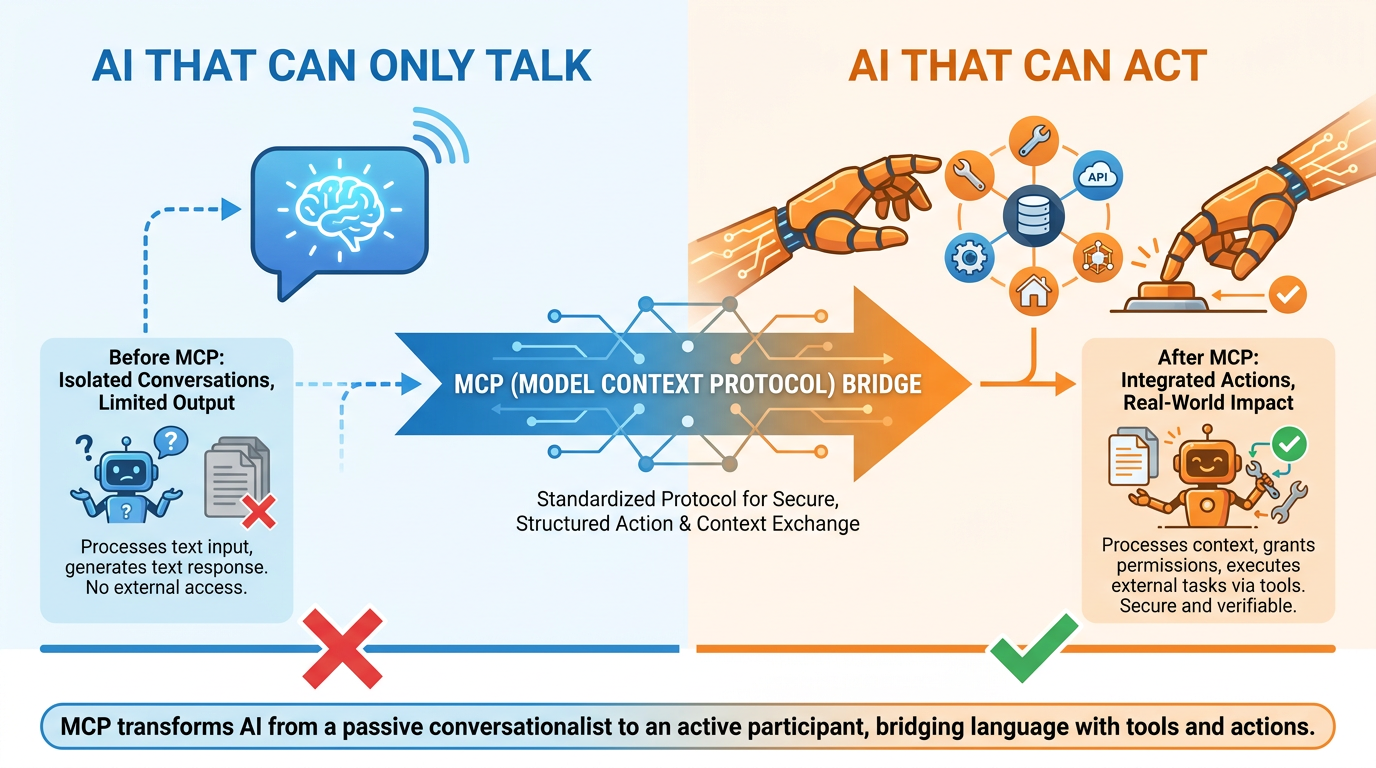
Figure 2:The MCP Difference — The same model. The same intelligence. One version is locked in a room. The other has a door.
Before MCP existed, connecting an AI to external tools required custom code, API wrappers, and significant engineering effort. Every integration was a one-off project. MCP standardizes the handshake — it defines a common protocol so that any tool built to the standard can plug into any AI that supports it.
Think of it like USB. Before USB, every peripheral had its own connector. After USB, anything that followed the standard worked with anything else that followed the standard. MCP is USB for AI tools.
From a practical standpoint, an MCP server is a small piece of software that runs on your computer alongside Claude Desktop. Claude Desktop talks to it using the MCP protocol. The server translates Claude’s requests into calls to the actual tool — your Gmail account, your database, a website — and returns the results back to Claude. The whole exchange happens in seconds, and from your perspective it just looks like Claude knows things it could not have known before.
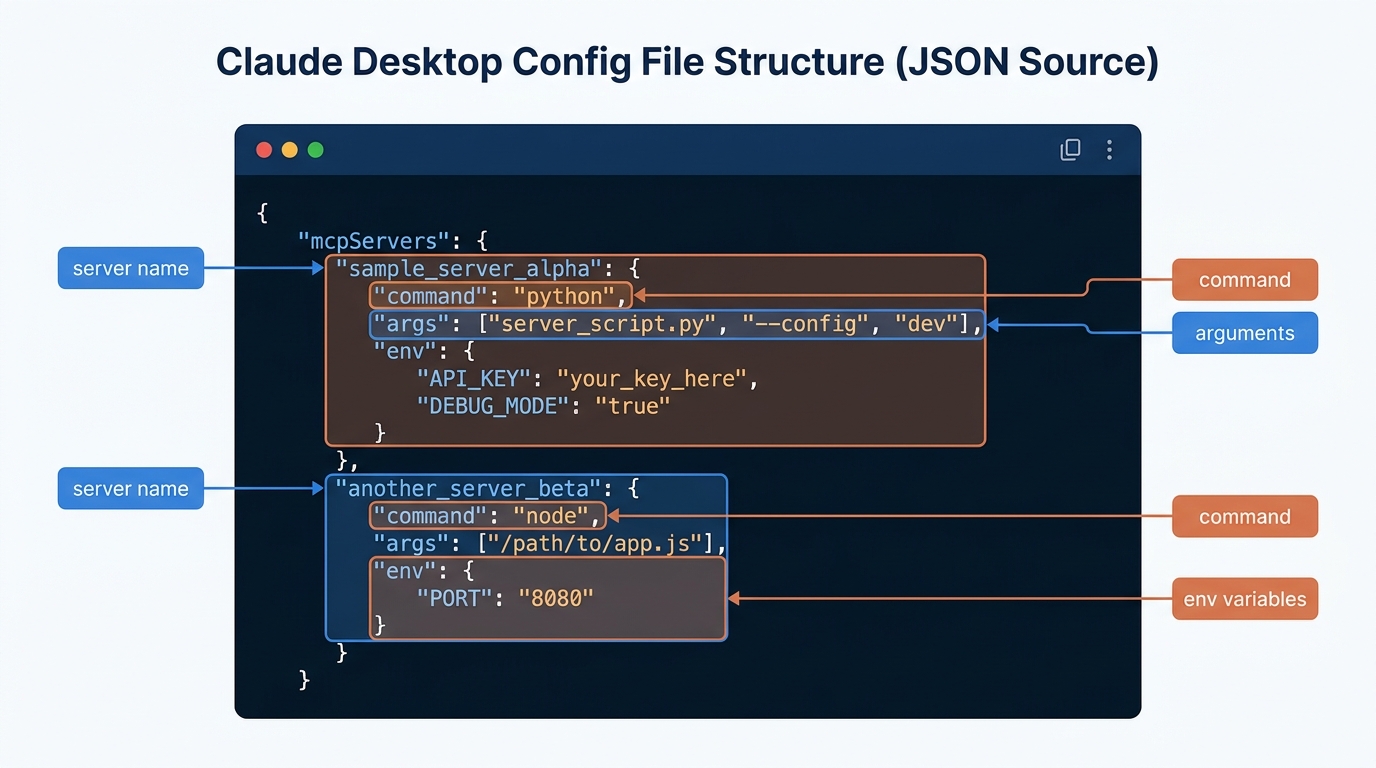
Figure 3:The Config File — A JSON file that tells Claude Desktop which MCP servers to load. You add entries here once; they load automatically every time Claude opens.
Behind the scenes, Claude Desktop keeps a list of the tools it has permission to use. When you connect a new tool, Claude Desktop remembers it and loads it automatically every session. From that point on, Claude can use those tools in any conversation.
You do not need to be a developer to do this. The rest of this chapter walks you through the exact steps.
Google Workspace: Your Day-to-Day Life, Inside Claude
This is the highest-value MCP connection most professionals can make. Your Gmail, Google Drive, and Google Calendar contain more context about your work than any document you could manually paste. Connecting them to Claude Desktop means your AI can finally see your world instead of just hearing about it.
If you do not have a Google account, create one at gmail.com before continuing. It is free. The connection requires a Gmail account because Google’s authentication is tied to the Google account ecosystem.
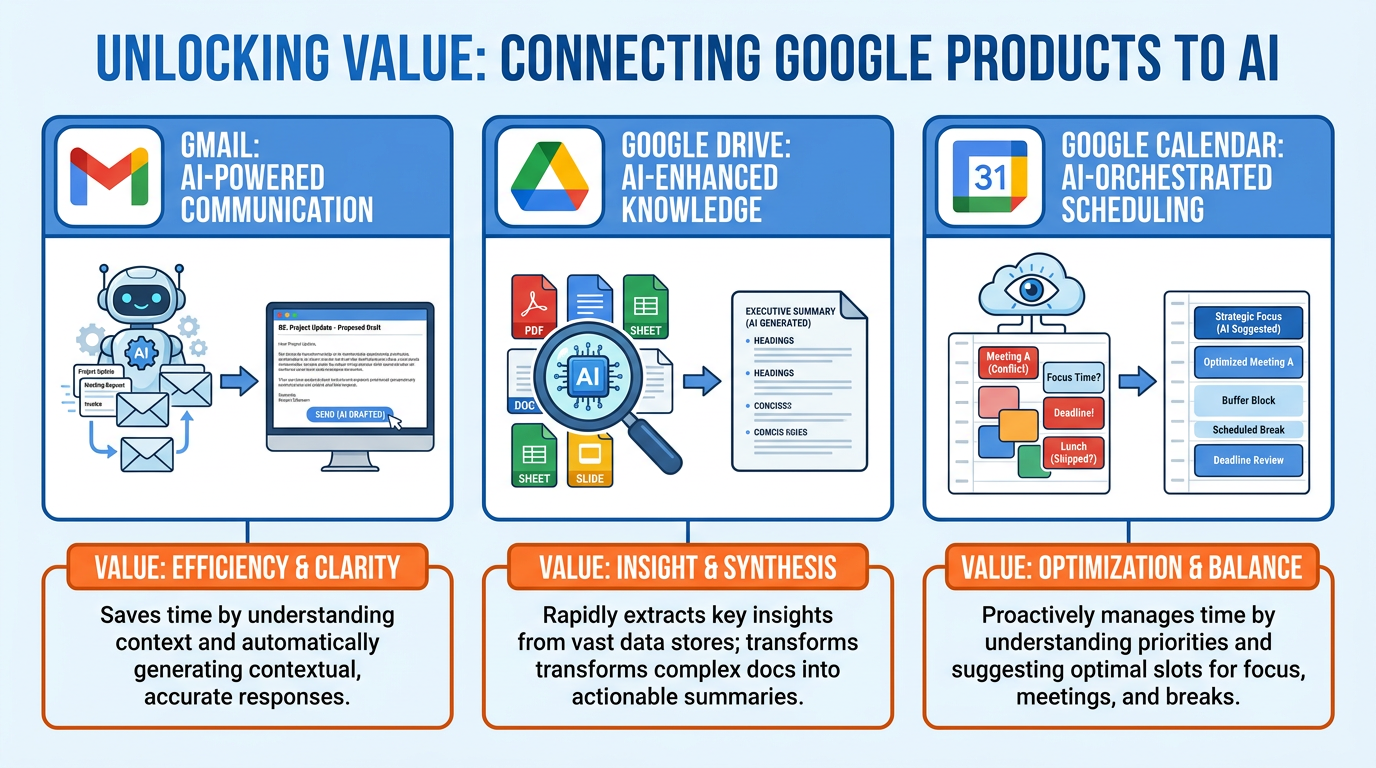
Figure 4:Three Independent Connections — Gmail, Drive, and Calendar each connect separately. Each one adds a different kind of awareness to Claude.
What you get:
Gmail — Claude can search your inbox, read specific emails, find threads by sender or subject, and draft responses in your voice. Ask it to find every email from a specific client in the last 30 days, summarize the conversation, and draft a follow-up — and it does exactly that without you copying and pasting a single message.
Google Drive — Claude can search your Drive, open and read documents, and reason across multiple files. Drop 10 reports in a Drive folder and ask Claude to find the common themes or flag the outliers. It reads all of them.
Google Calendar — Claude can see your upcoming schedule, check for conflicts, identify your available windows, and factor your calendar into its recommendations. Ask it to help you prepare for tomorrow’s meetings and it knows what those meetings are.
Setting up the Google connectors in Claude Desktop:
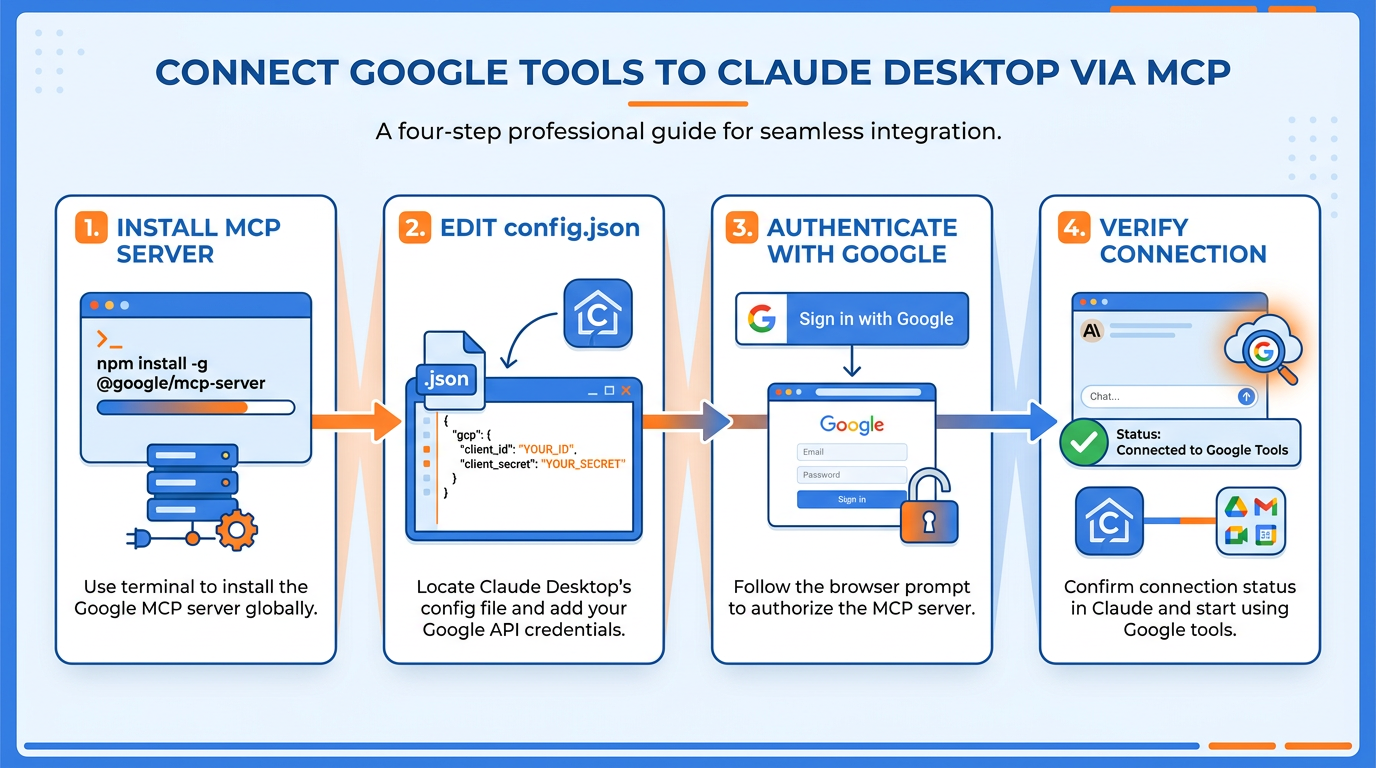
Figure 5:Google Connector Setup — No config files, no credentials, no developer tools. Claude Desktop has it built in.
Claude Desktop ships with Google Workspace connectors built in. There is nothing to install, no configuration file to edit, no Google Cloud Console to touch. The connectors are already there — you just need to authenticate.
How it works: Simply ask Claude a question that requires your Google data. Claude detects what it needs, asks for your permission, and opens a Google OAuth window. You sign in, grant access, and Claude gets to work. Every action Claude takes on your behalf requires your explicit approval — it will always show you what it is about to do before doing it.
To connect your accounts: In Claude Desktop, click Customize in the left sidebar → Connectors → click the + icon → select Google Workspace. Sign in with your Google account when prompted. Grant the permissions requested. That is the entire setup.
From that point on, Claude can access your Gmail, Drive, and Calendar in any conversation — no re-authentication required. Claude’s responses include citations showing exactly which emails, documents, or calendar events it used as sources, with links back to the originals.
One important note on Gmail permissions: Google’s OAuth screen mentions email sending during authentication. Claude only reads your emails and creates drafts — it cannot send. Anything it drafts must be sent manually by you. Your inbox is read-only from Claude’s perspective unless you explicitly approve a specific action.
This connection is not a one-time trick. Once it is live, every conversation with Claude has access to your Google data when you ask for it. It becomes part of how you work.
Firecrawl: The Web, Readable by Your AI
The public internet is one of the largest information sources in the world — and by default your AI cannot read any of it. Firecrawl fixes that.
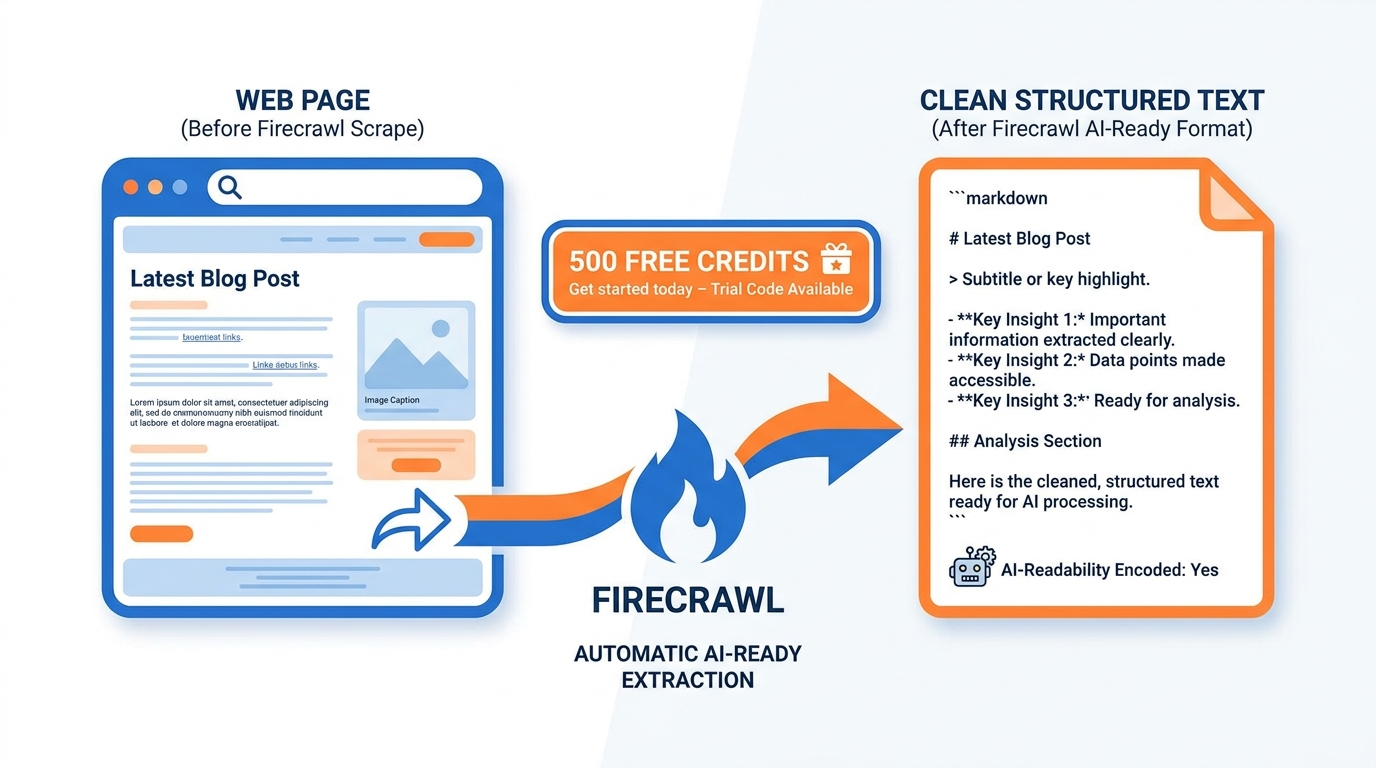
Figure 6:What Firecrawl Does — A website is a mess of HTML, JavaScript, and navigation. Firecrawl extracts the actual content and hands it to your AI as clean, readable text.
Firecrawl is a web scraping API that converts any website into clean, structured text that an AI can read and reason about. Give it a URL. It returns the content in a format Claude can actually use — no HTML, no noise, just the text and structure of the page.
The free account gives you 500 lifetime credits. One credit is roughly one page scrape. That sounds limited, but consider what 500 deliberate scrapes actually gets you: 500 competitor pages analyzed, 500 pricing pages extracted, 500 news articles summarized, 500 job postings collected and compared. Used intentionally, 500 credits is a meaningful research capability that costs you nothing.
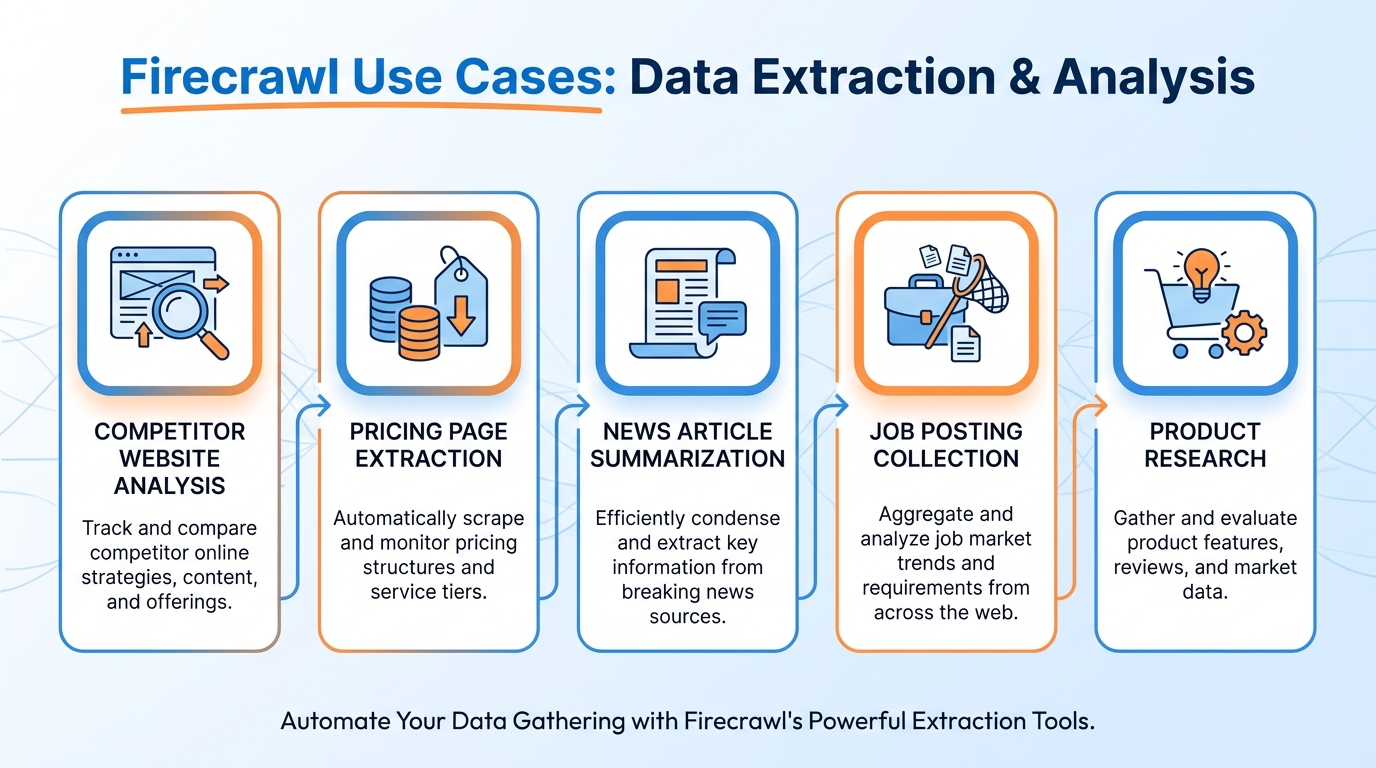
Figure 7:Firecrawl Use Cases — 500 free credits. Use them on things that would take you hours to read manually.
Setting up Firecrawl:
Go to firecrawl.dev and create a free account. Your dashboard will show your API key — a unique code that identifies your account, like a password for the service. Copy it and keep it somewhere safe.
Now go to Firecrawl’s Claude Desktop setup documentation page (search “Firecrawl MCP Claude Desktop” — it will be the first result). You will see a short configuration snippet. Copy that snippet, open Claude Desktop, and paste it in with this instruction:
“Here is the Firecrawl MCP configuration. Install this in Claude Desktop for me and tell me what to do step by step.”
Claude will walk you through the rest. When it asks for your API key, paste the one from your dashboard. The whole process takes about five minutes.
Once connected, test it immediately: ask Claude to read a specific URL and summarize it.
What to use Firecrawl for:
Competitive intelligence is the highest-value use case for most professionals. Ask Claude to read a competitor’s pricing page, their about page, their most recent blog posts, and their careers page — then synthesize what it learns into a competitive brief. That research, done manually, takes hours. With Firecrawl and Claude, it takes minutes and the output is better structured than anything you would write by hand.
The discipline is intentionality. Do not burn credits on pages you could just read yourself. Use them on content that requires synthesis — multiple pages, dense reports, sites with paywalled summaries you want analyzed from what is publicly visible.
Supabase: A Free Database Your AI Can Use
Most business professionals have never needed a database. That changes the moment you start building AI-powered workflows that need to store, retrieve, and update information at scale.
Supabase is a free cloud platform that gives your AI a place to store and retrieve information that persists between conversations. Think of it as a smart spreadsheet in the cloud — one that your AI can read from and write to, that lives online and never disappears when you close a tab, and that can handle real workloads as your use of AI grows. No credit card required. No technical setup. You create a project and Supabase handles everything else.
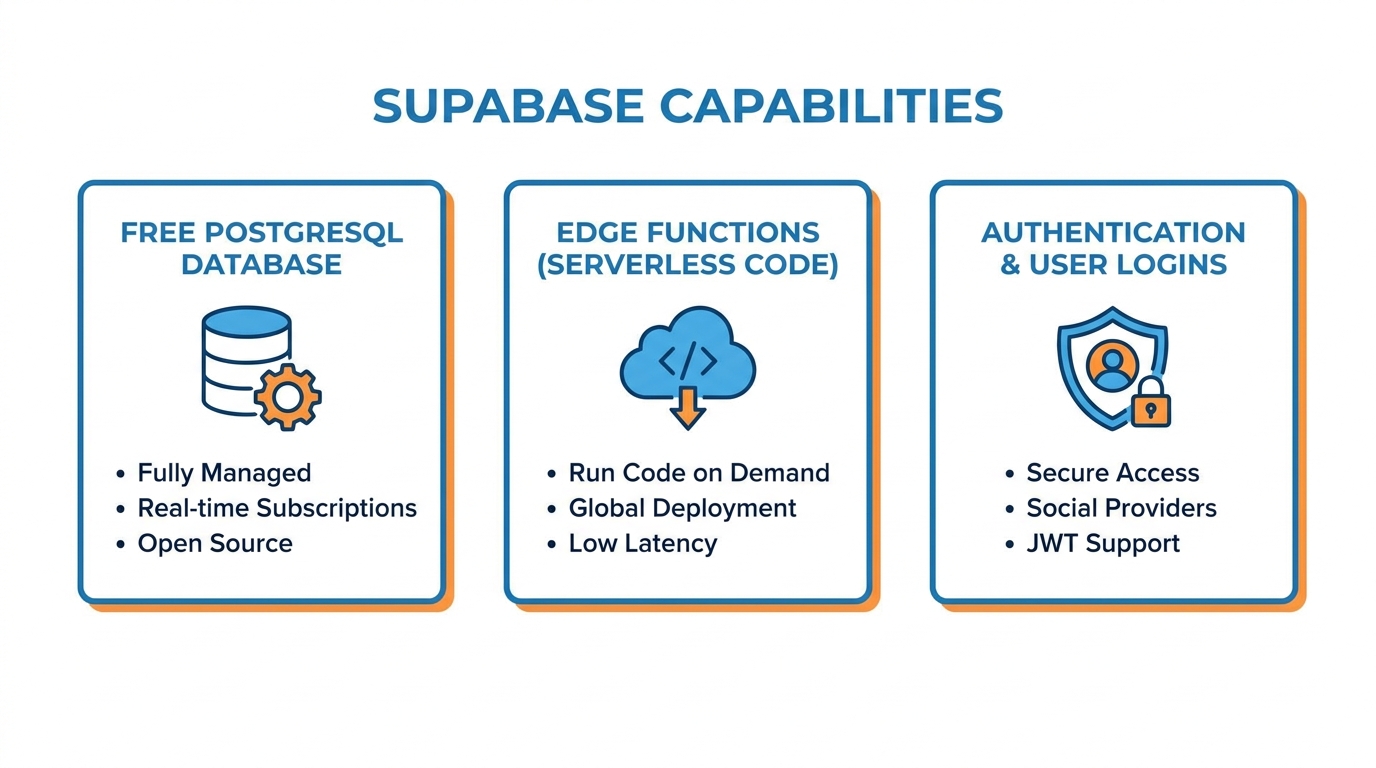
Figure 8:What Supabase Gives You — Three independent capabilities. You can use one, two, or all three. The free tier covers serious workloads.
Why this matters for AI workflows:
When your AI starts doing real work — collecting data, tracking contacts, logging decisions, managing customer records — it needs somewhere to put information that persists between conversations. Claude’s context window is not persistent storage. It clears between sessions. Supabase is the persistent layer.
Persistent storage — Your AI can read from it, write to it, and query it in plain English. Ask Claude to “find all clients who haven’t been contacted in 30 days” and it retrieves exactly that. The data lives in Supabase permanently, not just in the conversation.
Automation — Supabase can run tasks automatically on a schedule — pulling data, generating reports, sending updates — even when you are not in a Claude conversation. This is what makes AI workflows run on their own rather than requiring you to manually trigger everything.
User logins — If you ever build a web tool, a client portal, or an internal dashboard, Supabase handles the sign-in system for you. Your users can log in with Google, email, or other methods — without you building any of that infrastructure.
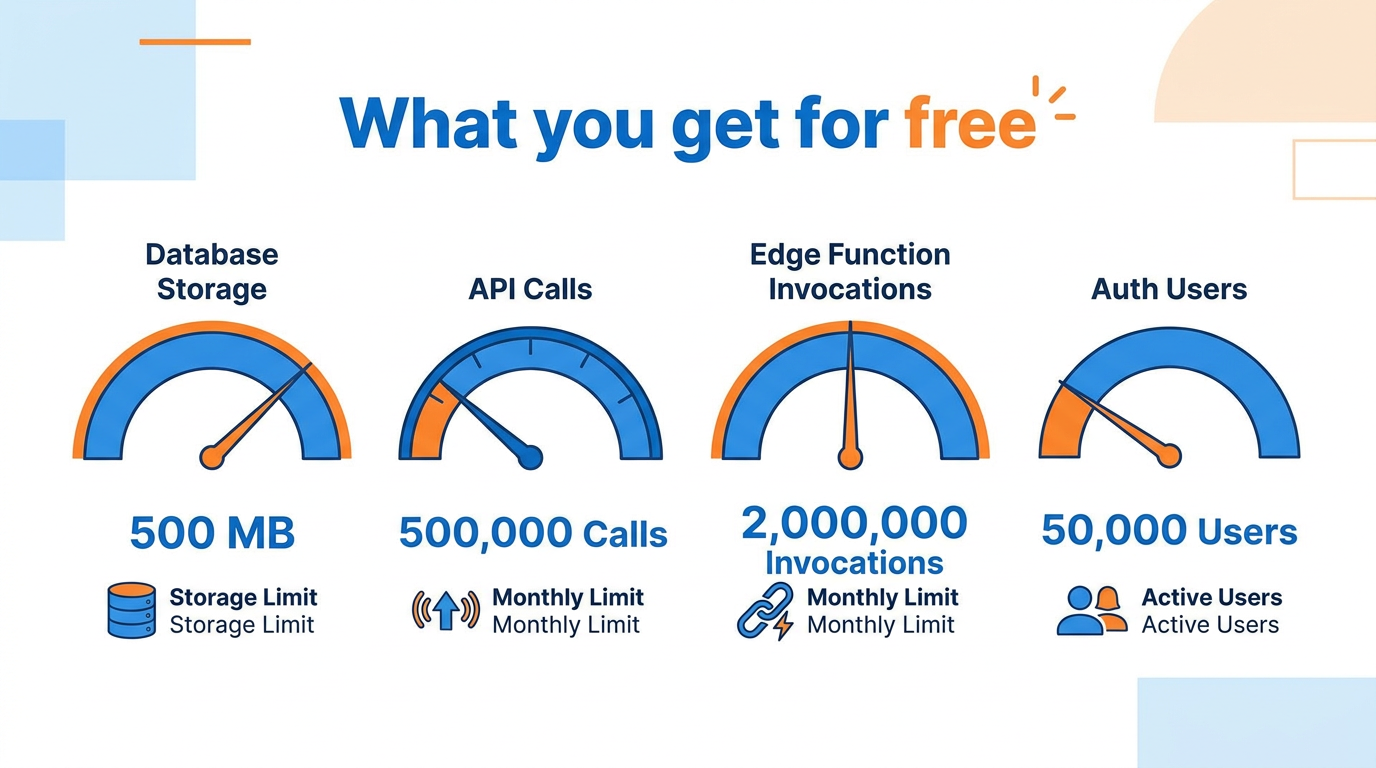
Figure 9:The Free Tier — Generous enough for real workflows. You will not hit these limits on a personal or small-team project.
Setting up Supabase:
Go to supabase.com and create a free account. Click New Project, give it a name, and Supabase sets everything up in about two minutes. You now have a live database in the cloud — ready to use.
To connect it to Claude Desktop, go to Supabase’s MCP documentation (search “Supabase MCP Claude Desktop”). Copy the configuration snippet you find there. Open Claude Desktop and paste it with this message:
“Here is the Supabase MCP configuration. Install this in Claude Desktop for me and walk me through each step.”
Claude will guide you through it. When it asks for your project URL and your project’s public key — both visible in your Supabase dashboard under Project Settings → API — paste them in. Five minutes, no technical knowledge required.
Once connected, ask Claude: “What information is stored in my Supabase project?” and it will describe what it sees. From that point on, tell Claude what you want to store or retrieve in plain English — it handles everything underneath.
The Rest of the Landscape
The three tools above are the high-priority installs. But MCP is an ecosystem, not a closed list. Hundreds of servers exist and more are published every week. Here is a brief map of what else is available so you know where to look when you need something specific.
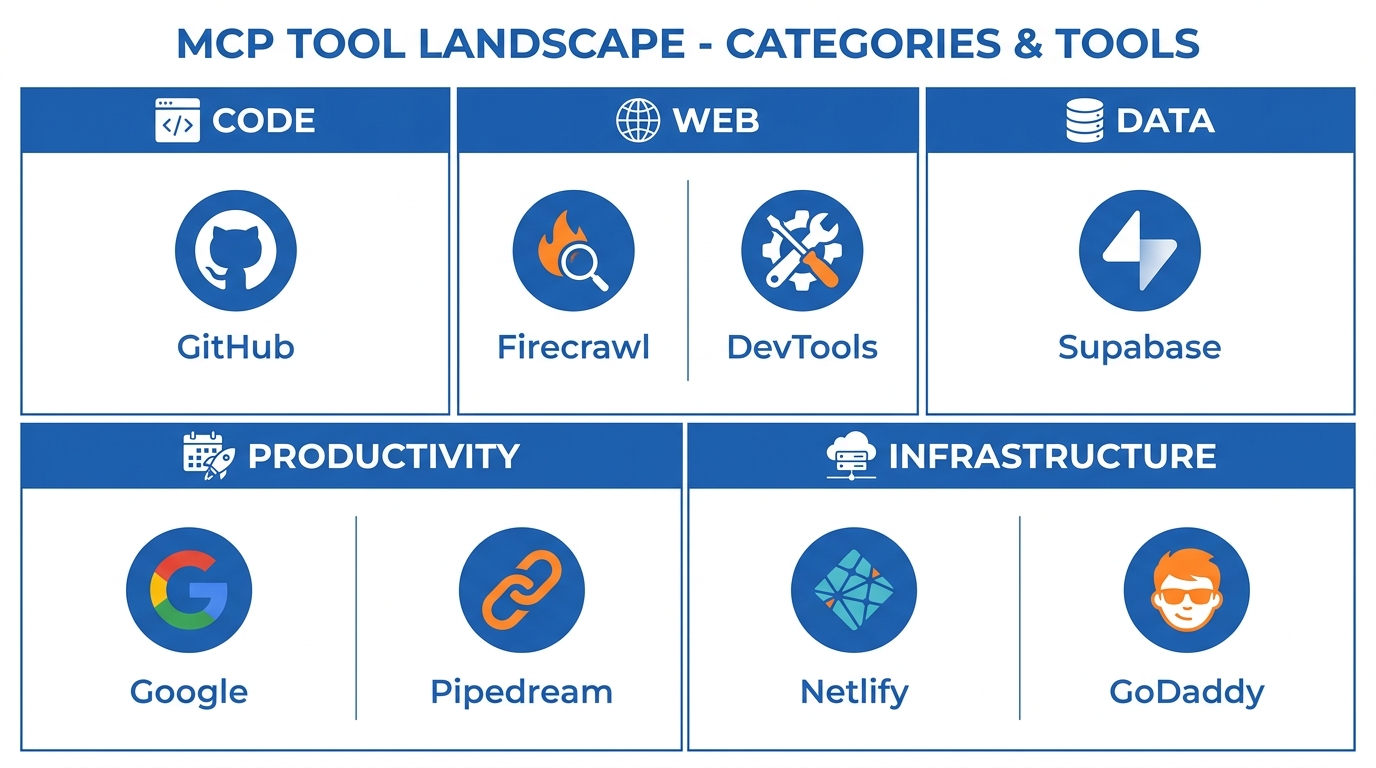
Figure 10:The MCP Landscape — Categories of tools available. When you need a capability not covered in this chapter, this is how you find it.
Code and repositories — GitHub MCP lets Claude read, write, and manage code repositories. If you work with developers or manage technical projects, this connection lets Claude participate in actual codebases rather than just talking about them abstractly.
Web automation — Chrome DevTools MCP gives Claude the ability to interact with web pages in a browser — filling forms, clicking buttons, extracting data from sites that Firecrawl cannot scrape because they require login sessions.
Workflow automation — Pipedream connects thousands of apps without code. Once integrated with Claude via MCP, it becomes a trigger-and-action engine: when Claude identifies something that needs to happen in another tool, Pipedream can make it happen.
Infrastructure — Netlify lets Claude deploy websites and web applications directly from a conversation. GoDaddy MCP covers domain management. These are niche tools for specific use cases but genuinely powerful when you need them.
Finding new servers: The canonical registry is at mcp.run and the Anthropic MCP GitHub repository. When you need a capability not covered here, search those first. The ecosystem is growing fast — if a major tool does not have an MCP server today, it likely will within months.
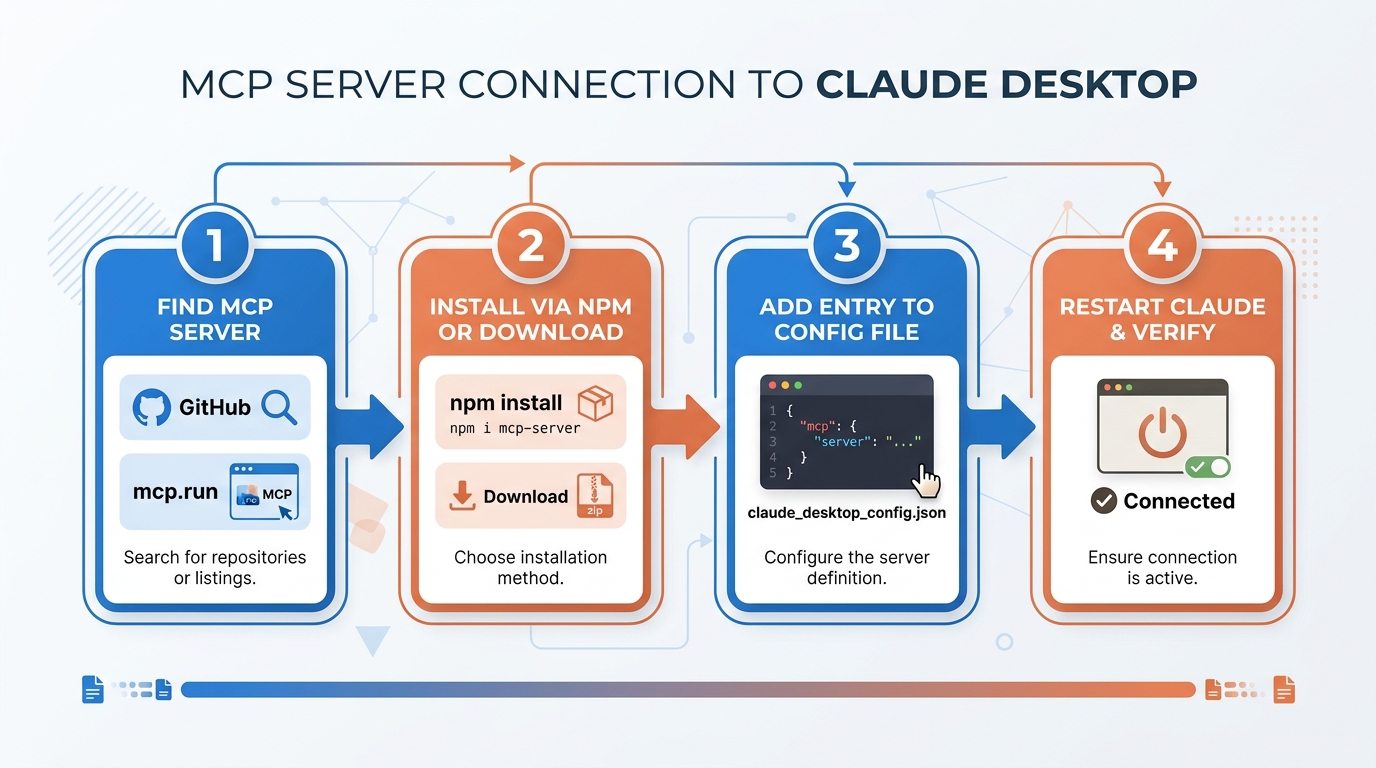
Figure 11:The Universal Pattern — Find it, connect it, verify it. Every tool follows the same four steps — and none of them require technical knowledge.
The universal pattern for any tool connection is the same four steps: find the tool’s MCP documentation (search “[tool name] MCP Claude Desktop”), copy the configuration snippet, open Claude Desktop and say “Install this for me and walk me through it” — then paste the snippet. Claude will guide you through each remaining step. Once you have done it three times, the whole process takes under five minutes.
Who Owns the Standard? MCP Grows Up
Here is a question worth pausing on: if MCP was invented by Anthropic, why would Google, OpenAI, and Microsoft build on it? Why would you build your business workflows on a protocol controlled by one vendor?
The answer, as of December 2025, is that nobody controls it — and that is by design.
Anthropic donated MCP to the Agentic AI Foundation (AAIF), a new foundation established under the Linux Foundation — the same neutral, nonprofit home that stewards Linux itself, Kubernetes, and much of the infrastructure the modern internet runs on. MCP entered the foundation alongside other agentic-era projects, including Block’s goose agent framework and OpenAI’s AGENTS.md convention. The protocol now evolves through open community governance rather than one company’s product roadmap.
Think back to the USB analogy from earlier in this chapter. USB succeeded not just because it was a good design, but because no single peripheral maker owned it. A standard you might be locked into is a feature. A standard nobody can lock you into is infrastructure. That is what the donation accomplished: every connector you set up in this chapter — Google Workspace, Firecrawl, Supabase — is built on plumbing that will outlive any one vendor’s strategy.
There is a practical benefit too. MCP now has an official, community-driven registry — a public catalog of published MCP servers, discoverable at registry
Try It: Browse the Official MCP Registry (10 minutes, optional)
Open your browser and go to registry
.modelcontextprotocol .io. You will see a searchable catalog of published MCP servers. (If that address does not resolve, search “official MCP registry” — the top result from modelcontextprotocol .io is the one you want.) In the search box, type the name of a tool you actually use at work — try “Notion,” “Slack,” “Stripe,” or “GitHub.” A list of matching servers appears, each with a name, publisher, and short description.
Click one server entry. You are now looking at its listing — including its manifest: the machine-readable description of what the server can do. Look for the list of tools it exposes (for example:
search_pages,create_task,send_message).Read the tool list slowly. Each entry is a verb — an action an AI connected to this server could take on your behalf. This is the vocabulary of hands.
Record: the server you picked, three tools from its manifest, and one sentence on a workflow those three tools would make possible in your actual job. Keep it — you will want it in Chapter 4.
When the AI Drives the Browser: Agentic Browsing
Everything in this chapter so far has followed one pattern: a tool publishes an MCP server, and Claude connects through the front door.
But most of the web has no front door. No API. No MCP server. No integration of any kind. Just pages — built for human eyes and human hands.
So the industry built AI that uses human eyes and human hands.
Agentic browsing is the category: an AI that operates a real web browser — reading pages, clicking buttons, filling forms, navigating from site to site — the same way you would, except tirelessly and in parallel with whatever else you are doing. This is not a single product. Every major lab has shipped one:
Claude in Chrome (Anthropic) — a Chrome extension that puts Claude in a side panel of your actual browser, where it can browse, click, and type on sites you authorize.
ChatGPT Atlas (OpenAI) — launched as a standalone AI-first browser in late 2025; OpenAI has since folded its browsing agent into ChatGPT itself and a Chrome extension. The lesson: the category outlived the product packaging.
Gemini’s agentic browsing (Google) — born as the Project Mariner research prototype, now absorbed into Gemini’s Agent Mode and Chrome itself.
Comet (Perplexity) — a free AI-native browser built around research-led browsing.

Figure 12:The AI Drives — A connector reaches a tool through its API. A browsing agent reaches it through the same interface you use: the page itself. Every site becomes accessible; every action becomes reviewable.
The permission ladder. The defining design question for a browsing agent is not what can it do — it is what must it ask before doing. Claude in Chrome answers with a ladder of three modes, selected from a drop-down menu on the chat input:
Manually approve — Claude proposes a plan first: which websites it will visit and what approach it will take. You approve the plan before anything happens, and Claude asks again before any action outside it. This is the training-wheels mode, and it is where you should start.
Automatically approve — Claude works without stopping at every step, but runs a safety review on each action and blocks anything that looks like data exfiltration or a prompt-injection attempt. Fewer interruptions; checks still run.
Skip all approvals — no pauses, no automatic checks. Reserved for tasks where you completely trust every site and file involved.
And some actions sit above the ladder entirely: regardless of mode, Claude in Chrome will not make purchases, create accounts, bypass bot checks, execute financial trades, or permanently delete files. Certain sensitive actions — downloading files, entering sensitive information — always trigger a fresh request.
For business professionals, this is the moment the “locked room” analogy from the top of this chapter fully collapses. With MCP, your AI could reach the tools that agreed to be reached. With agentic browsing, it can reach anything you can reach — under supervision you control.
Try It: Run a Real Research Task with Claude in Chrome (25 minutes)
What you need: Google Chrome on a desktop or laptop (the extension does not run on Edge, Brave, Arc, or mobile), a paid Claude account (claude.ai), and one real research errand you have been putting off.
Part 1 — Install (5 minutes)
Open Google Chrome. Go to the Chrome Web Store (chromewebstore
.google .com) and search for “Claude”. Look for the extension published by Anthropic — verify the publisher name before installing, because lookalike extensions exist. Click Add to Chrome, then Add extension in the confirmation dialog. You will see the Claude icon appear in your Chrome toolbar (click the puzzle-piece icon and pin it if it is hidden).
Click the Claude icon in the toolbar. A side panel opens on the right edge of your browser window. Sign in with your Claude account when prompted. When you see a chat input at the bottom of the side panel, you are ready. (If the side panel does not appear, right-click the Claude toolbar icon and choose “Open side panel.”)
Part 2 — Set the permission mode (2 minutes)
Look at the chat input in the side panel. You will see a small drop-down menu on or near the input box. Click it. Three permission modes appear: Manually approve, Automatically approve, and Skip all approvals. (Labels may vary slightly by version — the three-tier structure is what to look for.)
Select Manually approve. For this exercise, you want to see every request Claude makes. That is the point.
Part 3 — Run a real task (15 minutes)
Navigate to a live site relevant to a real question — a competitor’s website, an industry association’s site, a conference agenda page. Then type a genuine multi-step research task into the side panel. For example:
“Browse this company’s website. Find their pricing page, their three most recent blog posts, and their careers page. Then give me a one-page brief: what they sell, what they charge, what they are writing about, and what roles they are hiring for — and what all of that suggests about their strategy.”
Watch what happens before anything happens. In Manually approve mode, Claude presents a plan: the specific websites it intends to access and the approach it will follow. Read it. This is the permission ladder working. Click Approve plan — or click Make changes and redirect it, just to see that you can.
Now watch it work. The pages navigate themselves. You will see Claude scroll, click links, and open pages while narrating its progress in the side panel. If it needs a site not listed in the approved plan, it stops and asks — a New permissions required prompt appears, and you choose Allow this time only, Allow all for this website, or Deny. Deny one request on purpose and observe how Claude adapts.
When the brief arrives in the side panel, read it against the pages you watched it visit.
Your deliverable: Submit three things: (1) the final research brief, (2) a list of every point where Claude asked your permission — the initial plan plus any mid-task requests — and what each was asking for, and (3) two sentences: one on a task from your real job you would delegate to a browsing agent this month, and one on a task you would never delegate to it, and why.
Fallback: If you cannot install Chrome extensions (a locked-down work machine, for instance), run the same research task in Perplexity Comet (free, from perplexity.ai/comet) or in Gemini’s Agent Mode, and complete the same three deliverables — noting which permission prompts you saw, or notably did not see.
Computer Use: When the AI Drives the Whole Screen
Agentic browsing handles the web. But some of the most valuable work in your organization does not live in a browser at all.
It lives in a desktop accounting package installed in 2014. In a point-of-sale system with no API. In an internal Windows application whose vendor went out of business. In the file manager, the spreadsheet app, and the PDF viewer on an ordinary office PC.
Computer use is the capability that reaches all of it. Instead of connecting to software through an interface built for machines, the AI operates the machine itself: it takes a screenshot of the screen, looks at it, decides what a person would do next — click there, type this, scroll down — performs that one action, and then takes a fresh screenshot to see what changed. Screenshot → decide → act. Then again. And again. A vision-action loop, running until the task is done.

Figure 13:Screenshot → Decide → Act — The AI has no special access to the software. It sees pixels and moves a cursor, exactly like a person at the keyboard. That is precisely why it works on software that was never built for automation.
The capability ships in two forms:
The API version. Anthropic offers computer use as a tool in the Claude API: developers give Claude a sandboxed virtual machine, and Claude drives it — screenshots in, mouse and keyboard actions out. This is how companies build agents that operate legacy systems at scale.
The consumer version. Computer use is built into Claude Cowork and Claude Code on the desktop. When Claude does not have a connector or tool for what you need, it can navigate your actual screen — opening apps, clicking, typing — with no setup required. Crucially, Cowork follows a most-precise-tool-first rule: if a Slack connector can fetch the message in two seconds, Claude uses the connector; it only drives the screen when nothing better exists. And it asks your permission per application — before Claude touches an app for the first time, a prompt appears, and nothing happens until you approve. Some apps are off-limits by default, and Claude is trained to refuse risky operations like transferring funds or deleting files. Anthropic labels the consumer version a research preview, and its own guidance is blunt: no safeguard is perfect, so keep sensitive apps closed and watch the early runs.
Try It: Watch a Computer-Use Session Work (20 minutes, demonstration level)
You are not building an automation here. The goal is to witness the loop — to watch an AI look at a screen, reason, and act — and to note exactly where it asks before acting.
Path A — Claude Cowork on your desktop (preferred if available)
Open the Claude Desktop app and switch to Cowork (look for Cowork in the left sidebar; if you do not see it, update the app — computer use requires a current version and a paid plan).
Pick a genuinely harmless sandbox task on your own machine. Good options: “Open my file manager, create a folder on the Desktop called
cowork-test, and move any screenshots on the Desktop into it.” Or: “Open the calculator app, compute 14.75 × 36, and tell me the result.” Deliberately trivial — you are here to watch, not to ship.Type the task into Cowork and submit it. Observe the first permission gate: before Claude touches an application it has not used before, a prompt appears in Cowork naming the app and asking for your approval. Nothing moves until you click approve.
Approve, and watch the loop run. You will see the cursor move on its own, clicks land, text appear — and in the Cowork panel, Claude narrating what it sees in each screenshot and what it plans to do next. This narration is the screenshot→decide→act loop, exposed.
Interrupt once on purpose: when Claude requests access to a second app (or asks a clarifying question), click deny or answer “no.” Watch it adapt or stop cleanly.
Record as it runs: every action Claude took (a simple numbered list), every point where it asked permission and what it asked for, and one mistake or hesitation you observed, if any.
Path B — Watch a recorded session (fallback if you do not have Cowork access)
Go to anthropic.com and search the site for “computer use” — or go to docs.claude.com and find the Computer use tool documentation. Both include demonstration videos of Claude driving a desktop: filling forms, moving between apps, correcting its own missteps.
Watch one full demonstration, and narrate the loop to yourself in the vocabulary of this section: there is the screenshot — there is the decision — there is the action — there is the new screenshot.
Record the same three things as Path A: the actions taken, the permission or checkpoint moments, and one error or self-correction you spotted.
Your deliverable: Submit your observation log — the numbered action list, each permission gate and what it protected, one observed mistake or self-correction — plus two sentences naming one piece of no-API software in your own workplace that computer use could operate, and what a pilot task there would look like.
Case Study: The Governance Gap at Meridian Health Partners
Background
Meridian Health Partners is a mid-sized regional healthcare management organization headquartered in Fort Lauderdale, Florida, with approximately 1,400 employees across twelve affiliated clinics and three administrative centers. The organization manages insurance credentialing, patient scheduling, billing operations, and clinical staff coordination on behalf of its affiliated practices. Unlike hospital systems with large IT departments, Meridian operates with a lean technology team of eight — a structure common to regional healthcare management companies that grew rapidly through acquisition rather than organic digital transformation.
In early 2025, Meridian’s Chief Operating Officer, Diana Ruiz, attended a continuing education seminar on AI adoption in healthcare administration. What she brought back to leadership was not a vendor proposal — it was a framework. She had seen a live demonstration in which an AI assistant, connected to a live Google Workspace environment via MCP, pulled a week’s worth of scheduling conflicts, cross-referenced them against insurance authorization windows in a connected database, and drafted staffing adjustment memos — in under four minutes. The equivalent task at Meridian required two full-time coordinators and typically took two days. Ruiz returned to Fort Lauderdale with a mandate: evaluate whether MCP-enabled AI could be integrated into Meridian’s administrative operations within the fiscal year.
Meridian’s CTO, James Okafor, was cautiously supportive. His team had already piloted Claude Desktop for individual productivity tasks — drafting internal communications, summarizing meeting notes — and the results were positive. But the demonstrations Ruiz described were fundamentally different in kind. Connecting the AI to live systems — Meridian’s Google Workspace, its patient scheduling database, its credentialing file archive — meant the AI was no longer a drafting assistant operating on information employees manually provided. It would be reading, and potentially writing, directly into Meridian’s operational environment. Okafor recognized that the technical setup was not the hard part. The governance was.
Meridian’s compliance officer, Veronica Sánchez, immediately flagged the HIPAA implications. Even though the MCP connections being discussed did not directly touch patient health records, Meridian’s Google Drive contained hundreds of documents with quasi-identifiable administrative data — scheduling patterns, insurance claim summaries, staffing assignments cross-referenced with clinic locations. The line between operational data and protected health information was not always clean. Any AI system that could read that Drive could potentially reason across it in ways that produced HIPAA-relevant inferences. Sánchez had seen this problem before in the context of cloud storage audits. MCP, she argued, created the same risk surface at a new layer of abstraction.
The Situation
Leadership at Meridian now faced a decision that went beyond technology procurement. They had identified a genuine operational advantage — MCP-connected AI could compress two-day coordination cycles into four-minute workflows — but the architecture that enabled that advantage also introduced a new class of governance risk. The protocol’s universality, the very feature that made it powerful, meant that once granted, an AI’s access to connected systems was broad and persistent. Unlike a human employee who reads one file at a time and can be watched, a connected AI can query, cross-reference, and synthesize across an entire Drive in seconds. There is no natural bottleneck for auditing what was accessed and why.
Okafor proposed a phased rollout: start with read-only connections to non-sensitive calendaring and scheduling systems, establish logging requirements, and only expand to write-enabled connections after a governance framework was approved by compliance and legal. Ruiz supported the phased approach but worried about competitive timing — two of Meridian’s largest competitors had already announced AI workflow pilots, and the organization’s board was asking about differentiation. The strategic tension was real: moving carefully protected compliance, but moving slowly ceded ground. Sánchez’s position was that Meridian should not expand MCP access beyond read-only until a formal AI access policy — including data classification rules, access logging standards, and a defined approval process for new MCP tool connections — was ratified by the compliance committee.
Discussion Prompt
Using the frameworks presented in this chapter, analyze the strategic and governance tension Meridian faces. How does the architectural shift MCP represents — from AI as a drafting tool to AI as a live participant in operational systems — change the risk calculus for organizations in regulated industries? Consider specifically the distinction between read and write access, the compounding intelligence advantage of connected AI over time, and the organizational costs of governance delay. What decision framework would you recommend Meridian’s leadership adopt, and what conditions would need to be satisfied before expanding from read-only to write-enabled MCP connections?
Discussion Guidelines
Initial Post (due before class)
Minimum 400 words
Directly address the discussion prompt using concepts from this chapter
Include at least one APA-formatted citation — from the course text or a peer-reviewed source
Avoid summary; demonstrate analysis and original thinking
Peer Responses (minimum 2)
Minimum 250 words each
Each response must include at least one APA-formatted citation
Engage substantively — build on, challenge, or offer a contrasting perspective grounded in evidence
“I agree” or “Great post” responses do not meet the requirement
Maintain a professional and respectful academic tone
Applied Exercise: Connect Google to Claude Desktop and Prompt Your Real World
By the end of this exercise you will have Gmail, Google Drive, and Google Calendar connected to Claude Desktop — and you will have prompted against your actual data. This is the moment the workshop becomes real.
Track A — Claude Desktop
What you need:
Claude Desktop installed (Chapter 2)
A Google account — free at gmail.com if you do not have one
15 minutes
Part 1: Connect Your Google Account (5 minutes)
Open Claude Desktop. In the left sidebar, click Customize → Connectors → the + icon → select Google Workspace.
A browser window opens asking you to sign in with Google and grant permissions. Sign in with your Google account and approve the permissions. That is it. No config files. No developer console. No credentials to manage. Claude Desktop handles the entire authentication flow.
Once connected, you will see Gmail, Google Drive, and Google Calendar listed as active connectors. Claude now has access to all three whenever you ask for them.
Part 2: Prompt Against Your Gmail
Type this into Claude Desktop:
“Search my Gmail for any emails I received in the last 7 days that I have not replied to. For each one, give me the sender’s name, the subject line, and one sentence describing what they need from me. Sort them by urgency.”
Read what comes back. Notice that Claude is citing actual emails with links back to the originals. This is not a simulation — it is reading your real inbox.
If you have a clean inbox, try:
“Who has emailed me most frequently in the last 30 days? Give me the top five senders and roughly what each conversation has been about.”
Part 3: Prompt Against Your Google Drive
“Search my Google Drive for any documents I have edited in the last two weeks. List them by title, when they were last modified, and one sentence on what each one appears to be about.”
Then go deeper on one:
“Open [name of a specific document you know is in your Drive] and summarize it in five bullet points.”
Part 4: Prompt Against Your Calendar
“Look at my Google Calendar for the next 14 days. What does my schedule look like? Which days are the most packed? Where is my biggest uninterrupted block of time, and what day is it on?”
Follow up with:
“Based on my calendar for this week, when would be the best time to block two hours for deep focused work? Suggest three options and explain why each one works.”
Your Submission: Run the connected tool on a real professional task — not a test, but something you actually need answered today. Copy the full output into a document. Write two sentences: (1) what you asked and why it was genuinely useful, and (2) what the output would have looked like if you had given Claude only your description of the data rather than the live connection. Submit the output + two sentences.
Track B — Claude Code inside Antigravity IDE
Open Antigravity 2.0 IDE → Editor surface → open the integrated terminal (Control+backtick on Mac, Ctrl+backtick on Windows) → start Claude Code (you should see “claude>” when ready).
At the claude> prompt, type “/mcp” and press Enter. A list of available MCP integrations appears — these are the external tools Claude Code can connect to: web search, file system readers, calendar, GitHub, Google Drive, Notion, and others depending on your installation.
Choose one integration to connect. Web search is the easiest starting point and requires no separate account setup. Find it in the /mcp list and type the command to enable it — Claude Code will display the exact syntax. Follow any browser-based authentication prompts that open.
Confirm the integration is active: type “/mcp” again and verify it shows as connected.
Now run a real professional query that requires live data — not a question Claude can answer from training. For web search: “What are the three most important developments in [your specific industry] in the last two weeks? Cite specific sources with dates.” For a file reader: “List and summarize the five documents I have modified most recently in [folder path].” For a calendar connector: “What meetings do I have this week and what should I prepare for each one?”
Read the output carefully. Notice that Claude Code is citing real, current information — not training data from months ago. The Antigravity IDE file browser on the left side of the screen will show any files created as part of this interaction.
Now connect a second integration — one that touches a tool you use in your actual daily work. Common options: a file reader pointed at your documents folder, a calendar connector, or a project management tool. Follow the same process: find it in /mcp, authenticate, confirm active.
Run a second real query using the new integration. Ask something that genuinely matters to your work this week.
Finally, ask Claude Code to combine both integrations in one workflow: “Using [integration 1] and [integration 2], [describe a task that requires both].” For example: “Search the web for news about my client’s industry, then save a briefing to my documents folder as client-brief.md.”
Watch the Antigravity IDE file browser as Claude Code works. If it creates or modifies a file, you will see it appear in the left panel in real time.
Your Submission: Copy three outputs into a single document: (1) your first integration query result with sources cited, (2) your second integration query result, (3) the combined-integration workflow result. Write two sentences: (1) which integration produced the most immediately useful output and why, and (2) describe one workflow you could build this week that combines two or more of your connected tools. Submit the three outputs + two sentences.
Track C — Gemini + Antigravity 2.0 IDE
Open Gemini (gemini.google.com) and sign in with your Google account.
Click the settings or Extensions icon (look for a plug or grid icon, or go to Settings → Extensions). Enable the Google Workspace extension — this connects Gemini to your actual Gmail, Google Drive, Google Calendar, and Google Docs.
Once enabled, test with a real question that requires your actual data: “Find the three most important emails I have received in the last 48 hours that require a follow-up from me. For each one: who sent it, what do they need, and what would a good response look like?” Gemini will search your real inbox.
Note when Gemini cites a real email subject line or sender name from your actual account — that is the tool connection working. The response is grounded in your real data, not a generic example.
Run a second query using your Google Drive: “Find any documents in my Drive related to [a project you are currently working on]. Tell me what each document contains and whether there is anything I should review before my next meeting.” Confirm Gemini is referencing real document titles.
Now open Antigravity 2.0 IDE and press CMD+E (Mac) or CTRL+E (Windows) to switch to Agent Manager.
Create a new Project. Add a tool extension to the Project — click the tool or extension option in the Project settings and connect a web search capability. This is Antigravity’s own tool layer, separate from Gemini’s Google extensions.
Start a new asynchronous Agent task inside the Project: “Search the web for the five most relevant recent developments in [your industry or area of work]. Produce a one-page intelligence briefing with findings and their strategic implications.” Submit the task.
While the agent runs in the background (typically 2-4 minutes), go back to your Gemini window. Ask a follow-up question that builds on the Gmail or Drive data you already retrieved — you are using both surfaces simultaneously.
When the Antigravity Artifact arrives, compare it to your Gemini outputs. You now have two types of live-data AI responses: Gemini accessing your personal Google data, and the Antigravity agent accessing the public web.
Your Submission: Copy three outputs into a document: (1) the Gemini inbox analysis, (2) the Gemini Drive document search, (3) the Antigravity web intelligence Artifact. Write two sentences: (1) which data source — your personal Google data or the public web — produced the more immediately actionable result for your work, and (2) describe a workflow that would combine both and what problem it would solve. Submit three outputs + two sentences.
Reflection
Write one sentence before you close this chapter:
Now that Claude can see your inbox, your files, and your calendar — what is the first task you are handing off to it completely, starting this week?
That sentence is your commitment. The rest of this book is about making it bigger.